
Make a new show and its folder from Standard, Blank or a setup you saved, and choose where the folder goes.
Make a new show with its own folder, ready to fill. A show is one file with everything the switcher needs; see Shows.
Before you start
Section titled “Before you start”- A new show replaces the open one. If the open show is live, with something on the program, a recording or a stream, the Studio asks first, and its streams and recordings stop once you go on; see Closing a live show. It also offers to save unsaved changes.
- A show that follows a script written on the web can start from that web show: see From a web show below.
Step 1: Open the New Show sheet
Section titled “Step 1: Open the New Show sheet”Choose File › New Show… (⌘N), or click New Show… at the foot of the Show Manager. New shows are made in the Show Manager: it comes forward with the New Show sheet on it.
Step 2: Name the show
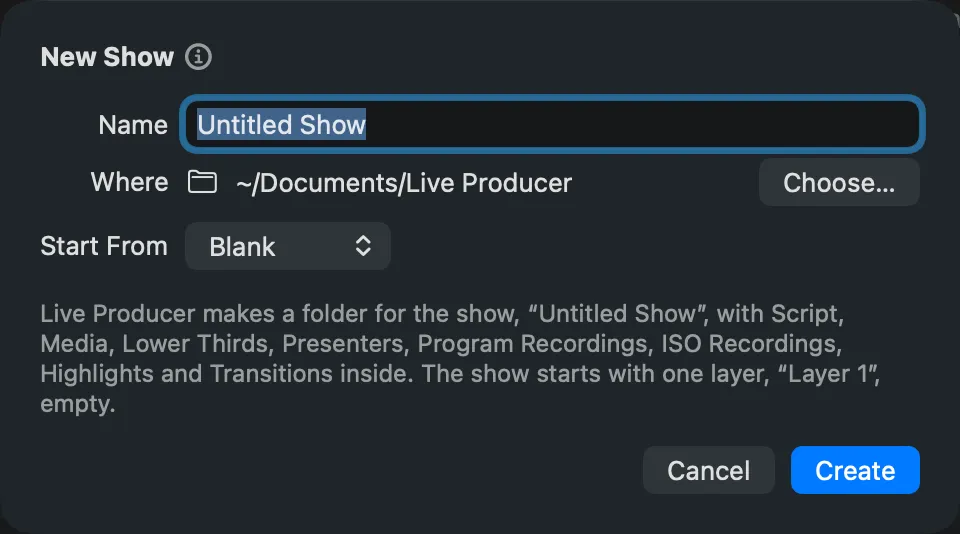
Section titled “Step 2: Name the show”Type the show’s name in Name. It becomes the name of the show’s folder and of its show file. Leave it empty for “Untitled Show”.
Step 3: Choose where its folder goes
Section titled “Step 3: Choose where its folder goes”Where shows the place the Studio suggests: the last place you used on this Mac, or
~/Documents/Live Producer. To put it elsewhere, click Choose… and pick a folder.
Step 4: Choose what the show starts from
Section titled “Step 4: Choose what the show starts from”In Start From, choose a layer setup:
| Choice | The show starts with |
|---|---|
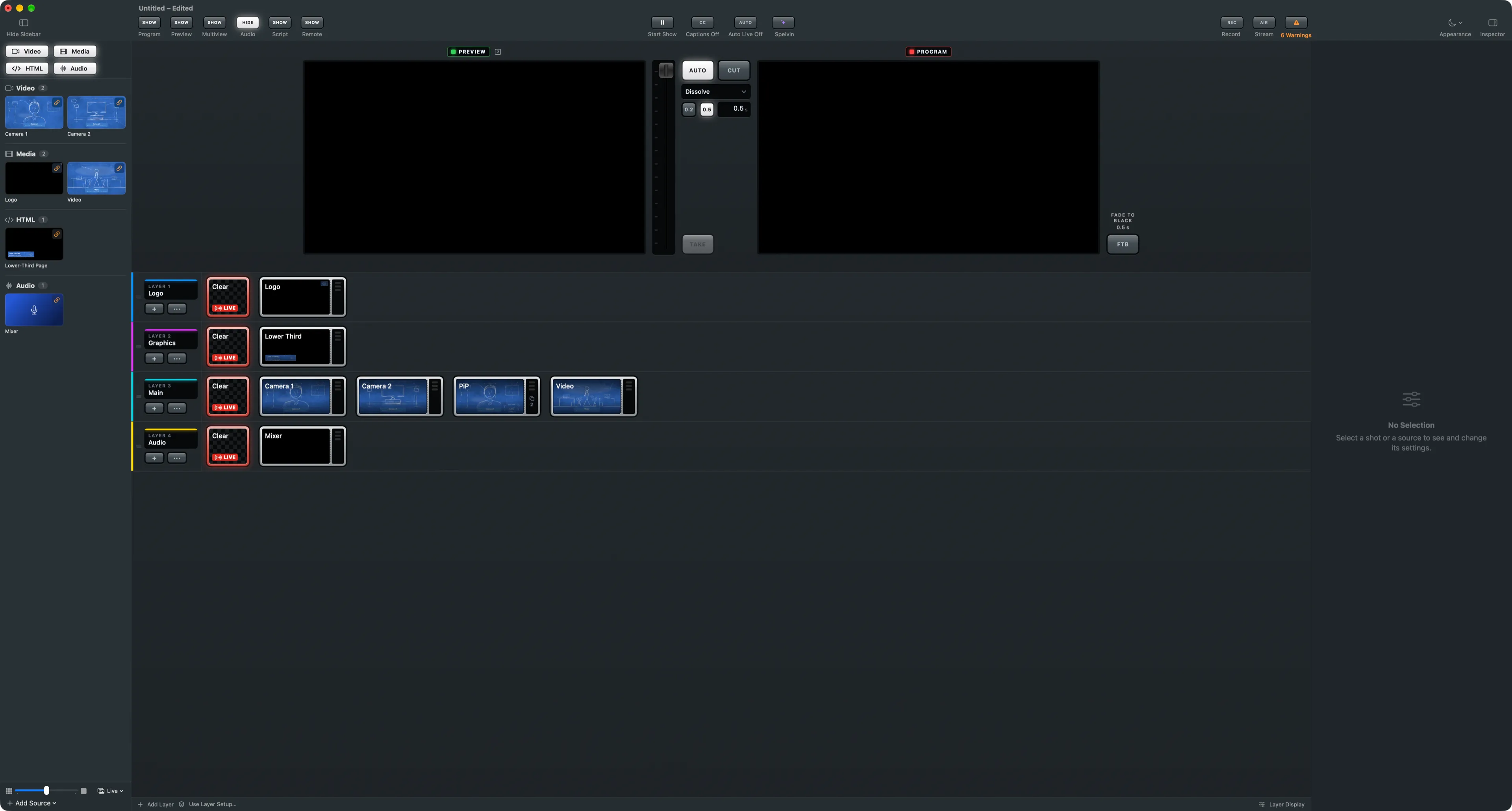
| Standard | the layers Logo, Graphics, Main and Audio, with shots and stand-ins to link to your cameras, files and inputs |
| Blank | one empty layer |
| a setup you saved | its layers, shots and sources |
The sentence under the form says what the choice makes. The Studio remembers your choice for the next new show on this Mac.
Step 5: Create it
Section titled “Step 5: Create it”Click Create. The Studio makes the folder with its subfolders and the show file, saves it at once, and opens the show in the main window. The Show Manager closes.
From a web show
Section titled “From a web show”In the Show Manager (File › Show Manager, ⇧⌘O), choose On liveproducer.ai, then New Show from Web Show… beside the web show. The New Show sheet opens with the web show’s name; after Create the Studio pulls its published script and files into the new show’s folder. Set the show up from the script afterwards with Suggest Setup Changes… in the Script window.
Verify
Section titled “Verify”- The window’s title is the show’s name.
- File › Show the Show Folder in Finder shows the folder with Script, Media, Lower Thirds and the other subfolders.
- From Standard, the Warnings key counts the stand-ins to link.
Related
Section titled “Related”Describes Live Producer 0.330 · 10 November 2026