
The steps a source's sound goes through before the buses: Clean Voice, Room Reduction, the Equalizer, the Compressor and Audio Units, the delay they add, and a bus that hears the sources without them.
Processing cleans and shapes a source’s sound before anyone hears it: a lav that picks up the air conditioning, a hall that rings, a voice that jumps from a whisper to a laugh. Each source can go through a few steps, top to bottom, and every bus hears the result. You fix the sound once, at the source, instead of on every output.
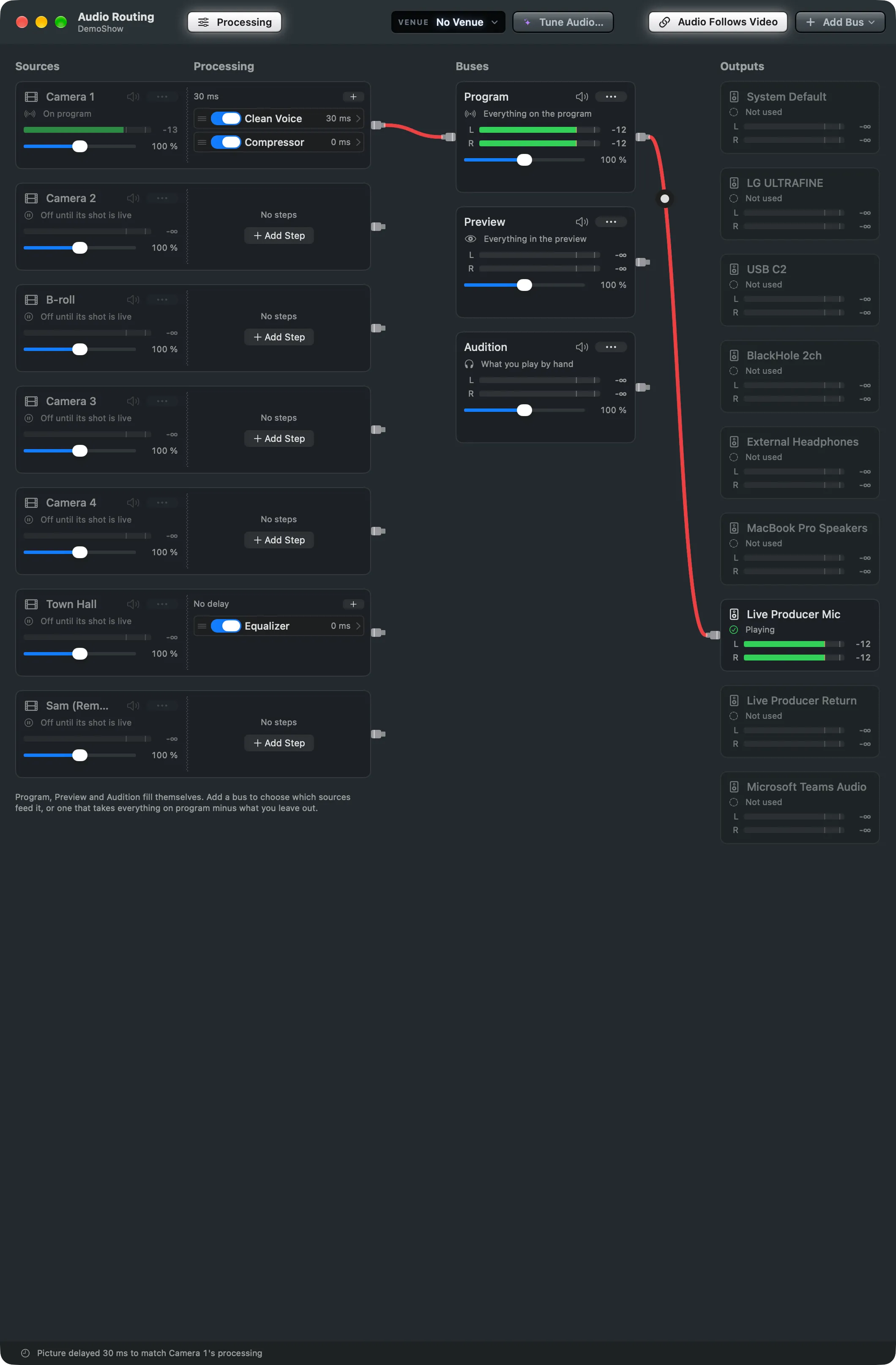
A step is one thing done to the sound. The Studio has its own, and it can use the Audio Units on this Mac:
| Step | What it is for | Adds |
|---|---|---|
| Clean Voice | takes noise away from a voice: traffic, rustle, a door, a keyboard. See Clean Voice | 30 ms |
| Room Reduction | takes the echo of a hall or a church out of a voice. See Room Reduction | 11 ms |
| Equalizer | five bands that cut the rumble under a voice or bring its words forward | nothing |
| Compressor | evens out a voice that swings from quiet to loud | nothing |
| an Audio Unit | any effect installed on this Mac, from Apple or another maker. See Add an Audio Unit | its own delay |
A source has each step at most once: the Add Step menu greys out a step the source already has. Each step opens in a window of its own, with the sound going in and out of it. See Step windows.
The order
Section titled “The order”The sound takes the steps from top to bottom. A usual order is the cleaning first (Clean Voice, Room Reduction), then the Equalizer, then the Compressor, so the Compressor evens out the voice and not the noise that was taken away. Drag a step by its grip to move it, or use Move Up and Move Down in its menu.
Heard at once
Section titled “Heard at once”A step works on the live sound as soon as it is added or changed, on the program too: no Take, as with a source’s level. Every change, and every step added, moved or removed, is undone with ⌘Z. A step that is off adds nothing and no delay.
The delay the picture waits for
Section titled “The delay the picture waits for”Cleaning a voice takes a moment: Clean Voice needs 30 ms of sound before it can decide what is voice. So that every voice stays in step with every other, every source waits for the longest processing in the show, with steps or without. The status line under the columns says which source sets it: “Picture delayed 30 ms to match Camera 1’s processing”, or No processing delay.
The recordings and the streams stay in sync: the Studio puts the sound back where its picture is. On what plays live, such as the Program window or a call through Live Producer Camera and Live Producer Mic, the sound arrives that much after the picture. People start to notice late sound at about 125 ms, so one or two steps go unnoticed.
The sound already has a delay of its own before any step, from the devices and the mixer:
| On the way | Takes |
|---|---|
| the input device’s buffer | 5 to 11 ms |
| the mixer’s safety margin as it reads | 21 ms |
| one block of the mix | 10 ms |
| the margin before a device plays | 21 ms |
| the output device’s buffer | 5 to 11 ms |
| from the microphone to the speaker, without steps | 62 to 74 ms |
| with Clean Voice | 92 to 104 ms |
Before Processing: the room’s PA
Section titled “Before Processing: the room’s PA”People in the room hear the presenter’s own voice as well as the speakers. A PA or in-ear mix that comes 30 ms late sounds like an echo to them. A bus can hear the sources before processing: as they come, without the steps and without their delay. Its card says Before processing, and the status line adds that it hears the sources before the processing. Every bus hears the processed sound until you change it; leave Program as it is, since the stream and the recording carry it. See Hear the sources without delay on the PA.
Treat the room first
Section titled “Treat the room first”A step hides a problem; the room fixes it. Before you add steps, bring the microphone closer, switch off the fan, close the door, and turn the gain down if the voice clips. A hum at 50 or 60 Hz is often a ground loop: an isolator or another power socket takes it away, where a step only turns it down.
Turn off the cleaning on the far side too. A call app that takes the program’s sound from Live Producer Mic cleans it again with its own noise suppression, which eats into a voice that is already clean. Turn it off in the call app. See Set up a call show.
Presets and Start From
Section titled “Presets and Start From”Start From replaces a source’s steps with a preset’s, as one undo. Live Producer has four:
| Preset | Steps |
|---|---|
| Lav Mic | Clean Voice (Light, Quiet Between Words), a gentle Compressor |
| Handheld Mic | Equalizer (Voice Clarity), Compressor |
| Room Mic | Clean Voice (Strong), Equalizer (Voice Clarity) |
| Remote Guest | Clean Voice (Light), Equalizer (Voice Clarity) |
Save as Preset… keeps a source’s steps under a name of your own, listed after these. Each of Live Producer’s steps also has presets of its own, in its window’s Preset menu. See Start a source from a preset.
Venues
Section titled “Venues”A venue is the place a show happens: how long its room rings, how loud it is when nobody speaks, and the steps you kept there per source. The next show in the same place starts from them. See Venues.
Remote guests
Section titled “Remote guests”A guest slot takes steps like any other source. A guest’s voice comes through their browser, which already takes away noise and evens the level, so Remote Guest comes first in Start From on a slot and cleans lightly. The guest’s voice is processed once, not once per channel. See Remote guests.
Spelvin: Tune Audio
Section titled “Spelvin: Tune Audio”Tune Audio… has the Mac listen to every source for 4 seconds and Spelvin propose the steps for each, with a reason. You choose what to apply. See Tune the audio with Spelvin.
The column folded
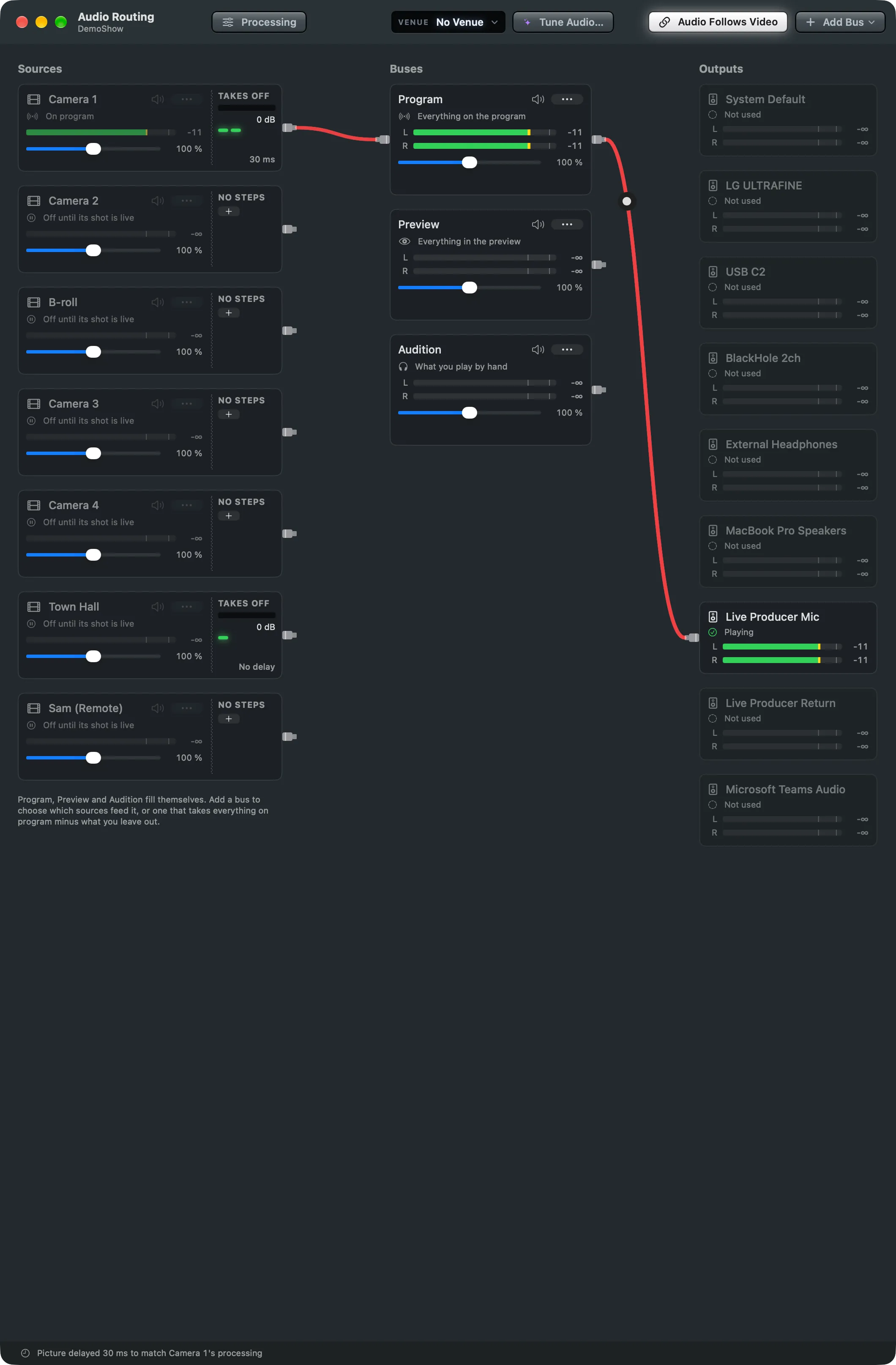
Section titled “The column folded”Once the processing is set, the column has little to watch. The Processing key over the column, or Audio › Hide Processing (⌃⌘P), folds it to a narrow strip per source: TAKES OFF with an amber meter and the number of dB the steps take away now, a lamp per step (green while on, dark while off, amber when not installed) and the delay. Click the strip to open the first step’s window; double-click it to show the whole column again. Folded or open is this Mac’s choice, not the show’s.
The Audio menu
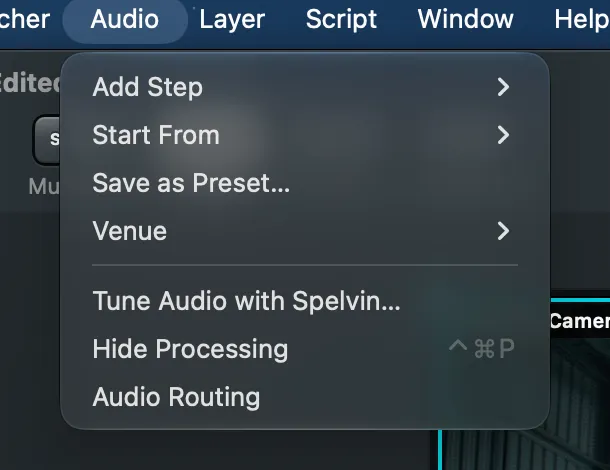
Section titled “The Audio menu”The menu bar’s Audio menu works on the source selected in the main window: Add Step, Start From, Save as Preset…, Venue, Tune Audio with Spelvin…, Hide Processing and Audio Routing.
Read more
Section titled “Read more”Describes Live Producer 0.330 · 10 November 2026