
For your guests: open the Guest Link, check camera and microphone, wait, and go on air.
This page is for the people you invite: send it with the Guest Link. Joining takes a minute and needs nothing installed. See Remote guests.
Before you start
Section titled “Before you start”- A computer with a camera and a recent Chrome, Edge, Safari or Firefox, or an iPhone or iPad.
- Headphones, so the show does not come back through your microphone.
- A quiet room and a steady connection; a cable beats Wi-Fi.
Step 1: Open your Guest Link
Section titled “Step 1: Open your Guest Link”Open the link from your invite. The page greets you by name and says whose show it is. On an iPhone or iPad with Live Producer Guest, the link opens in the app.
Step 2: Check your camera and microphone
Section titled “Step 2: Check your camera and microphone”Click Check Camera and Microphone and allow the browser to use them. You see yourself and the microphone’s level; pick another Camera, Microphone or Speaker if needed. Click Join.
Step 3: Wait in the Green Room
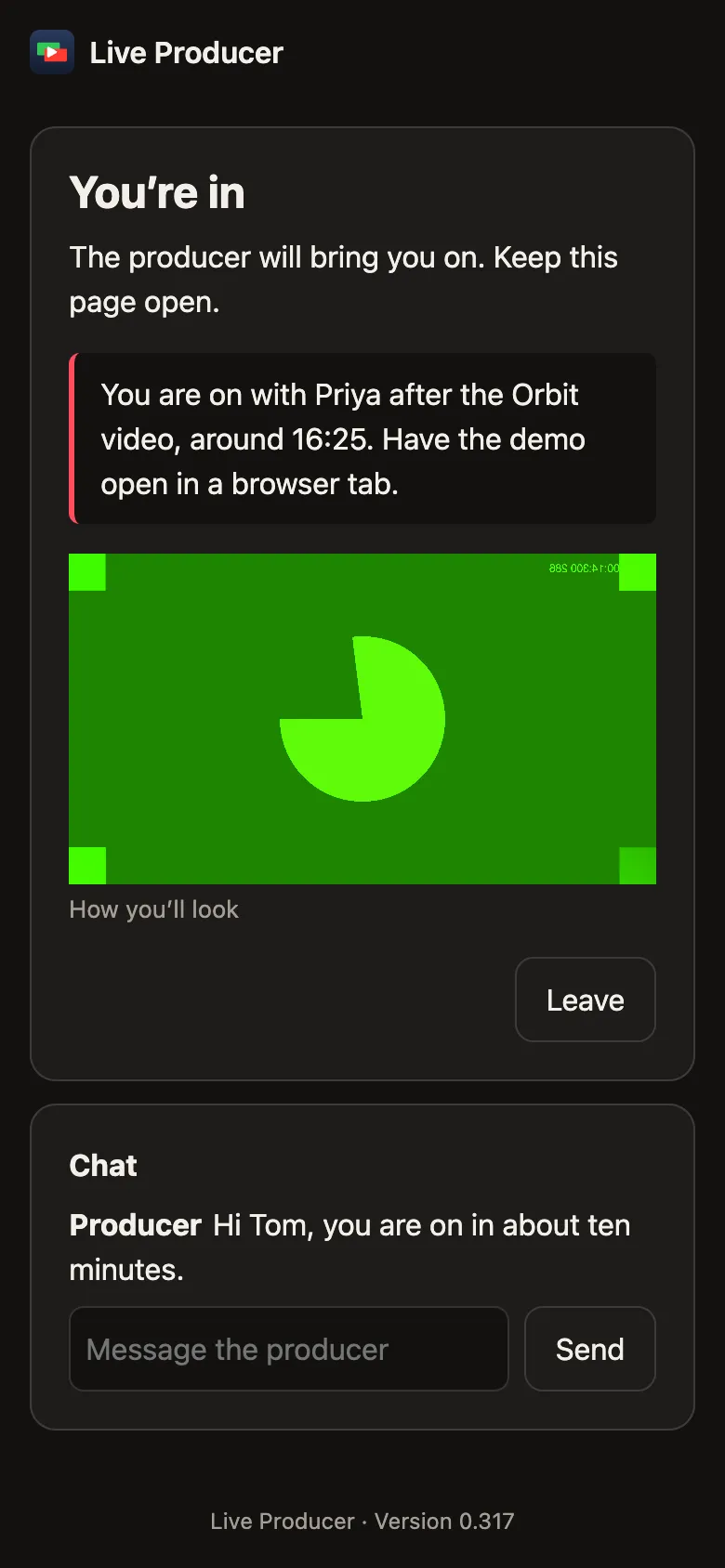
Section titled “Step 3: Wait in the Green Room”You’re in. The producer will bring you on. Keep this page open. You hear the show and see How you’ll look, a still of your shot with your own camera in it. The producer may talk to you, and you can use the chat.
Step 4: Be on the show
Section titled “Step 4: Be on the show”When the producer brings you on, the page says You’re on the show and shows the program. The tally above it says On Air while you are on the program, Next just before, and Standing By otherwise. On a computer, Share Screen shows your screen in the show.
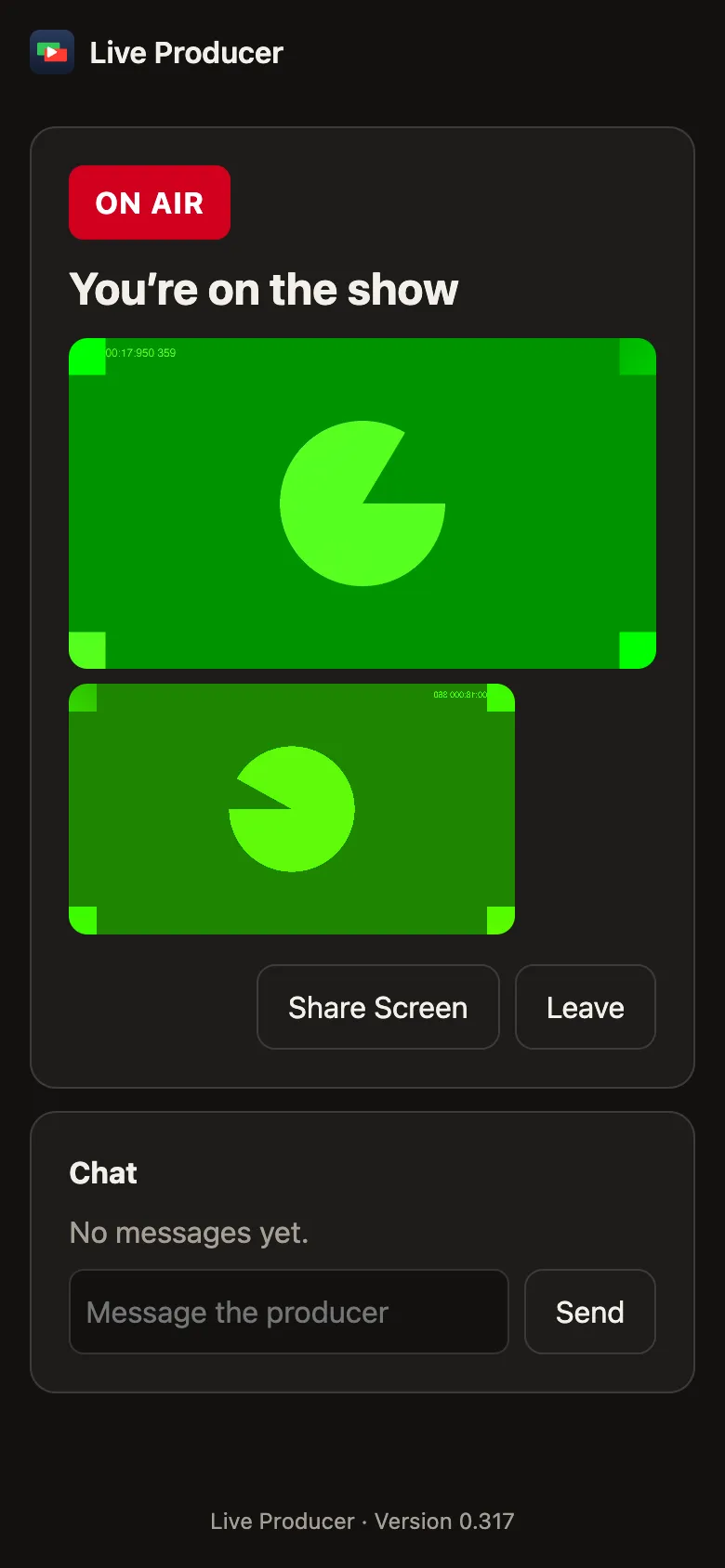
While the show records, the page says Recording: it keeps a copy of your camera and microphone in better quality than the live picture. After you Leave, keep the page open until it says Your recording is sent.
Verify
Section titled “Verify”You see the program and hear the show. If the page says This Guest Link no longer works, ask the producer for a new one.
Related
Section titled “Related”Describes Live Producer 0.330 · 10 November 2026