
Each step opens in a window of its own: On, Preset and Hold to Compare in the toolbar, the live sound in the middle, the step's settings below.
Every step of a source’s processing opens in a window of its own, titled with the step and the source. Click the step’s row in Audio Routing to open it. Several can be open at once, each is listed in the Window menu, and they close with the show.
The toolbar
Section titled “The toolbar”On beside the title turns the step on or off. At the trailing edge, the Preset menu has the step’s own presets (Default puts every setting back; Custom once you changed one), and Hold to Compare: held, you hear the source without this step, at the same delay. See Processing.
The live sound
Section titled “The live sound”The input meter on the left, the output meter on the right, and between them a picture of what the step does to the sound now. Make the window larger to give the picture more room.
The settings
Section titled “The settings”Under the picture, the step’s settings as rows, as in the inspector: drag a slider, type a value, or reset it to its default.
The foot
Section titled “The foot”How much delay the step adds (Adds 30 ms) and Remove Step.
By kind
Section titled “By kind”| Step | The picture | The settings |
|---|---|---|
| Clean Voice | the sound in (grey) and out (blue), the room tone dashed | Strength, Room Tone, Quiet Between Words, Opens At. See Clean Voice |
| Room Reduction | the sound in and out | Strength, Max Reduction, Room. See Room Reduction |
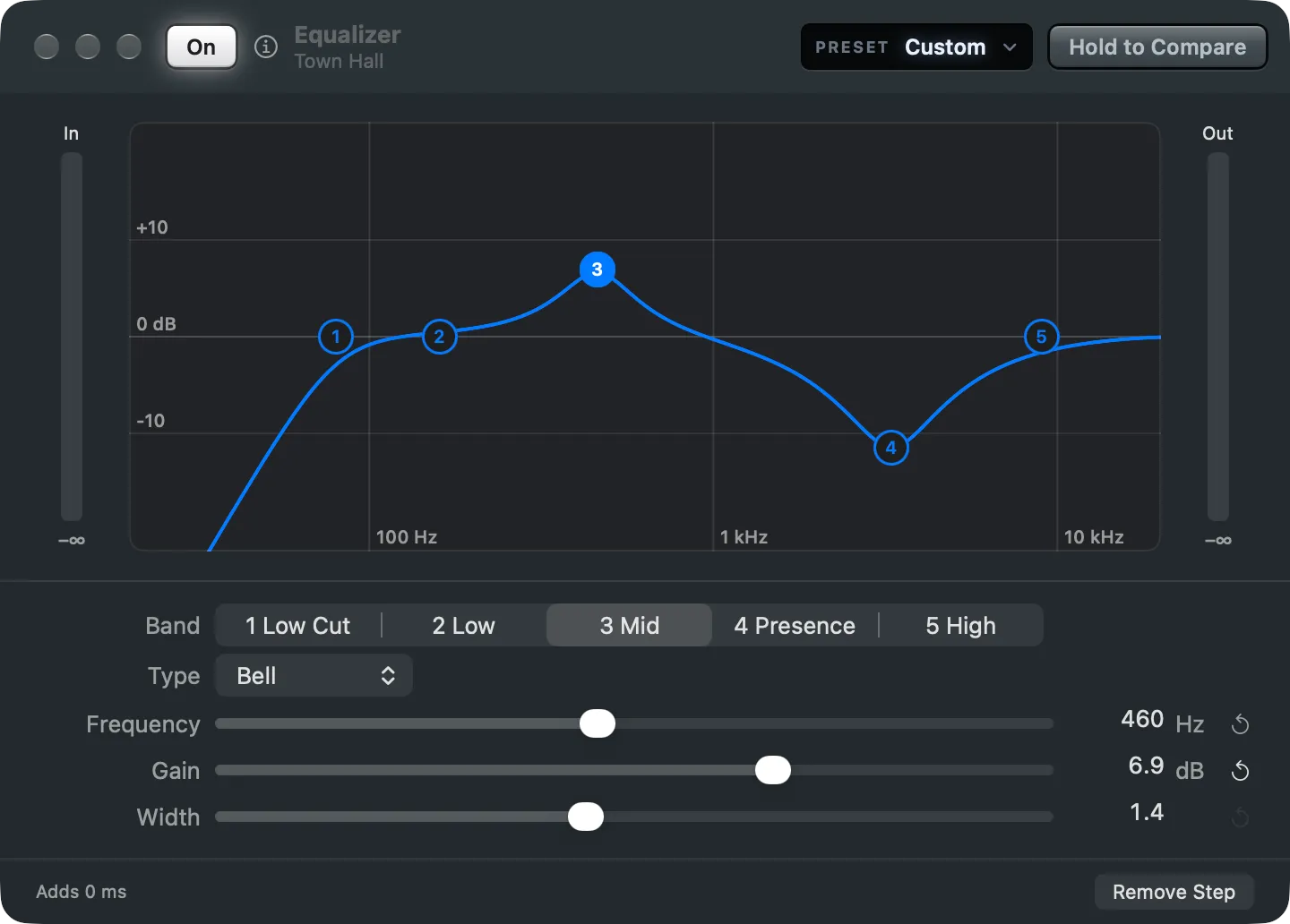
| Equalizer | the curve over the live sound, a numbered handle per band | Band, Type, Frequency, Gain or Slope, Width |
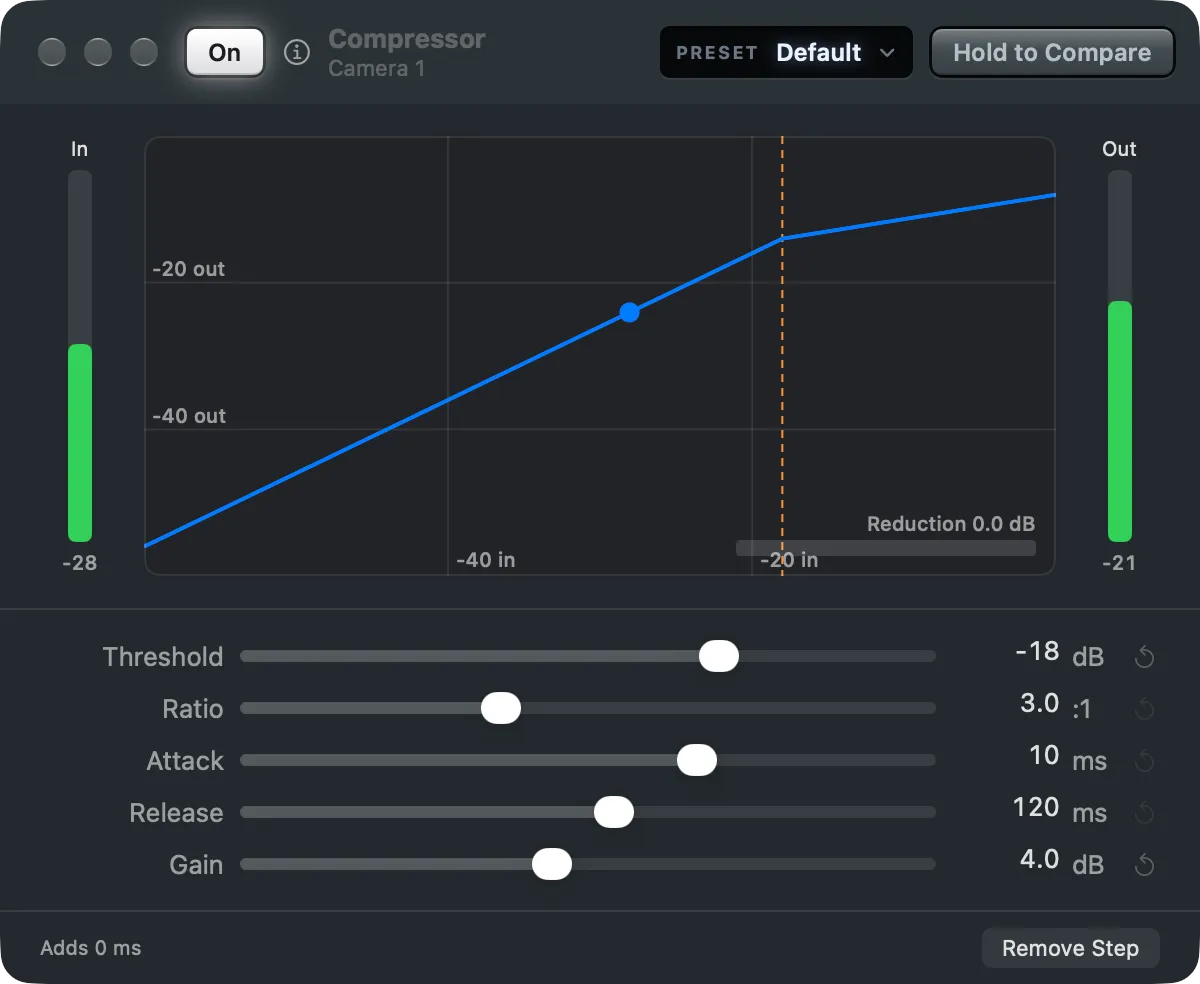
| Compressor | the level in against out, the threshold, a dot for the live level and the Reduction | Threshold, Ratio, Attack, Release, Gain |
| an Audio Unit | the unit’s own view | the unit’s own, or its settings as rows. See Add an Audio Unit |
The Equalizer
Section titled “The Equalizer”Five bands, edited one at a time: pick one on the curve or in Band, or drag its handle, left and right for the frequency, up and down for the gain. By default only the first does anything: Low Cut at 80 Hz, which takes the rumble away and turns a 50 or 60 Hz hum down. The others are Low (160 Hz), Mid (450 Hz), Presence (3.2 kHz) and High (9 kHz), flat until you raise or lower them.
| Setting | Range |
|---|---|
| Type | Low Cut, Low Shelf, Bell, High Shelf, High Cut |
| Frequency | 20 Hz to 20 kHz |
| Gain | −20 to +20 dB |
| Slope (a cut, in place of Gain and Width) | 12, 18 or 24 dB/oct |
| Width | 0.3 to 10 |
The Compressor
Section titled “The Compressor”The Compressor turns the voice down once it passes Threshold, by Ratio, so loud and quiet words come closer together; Gain brings the whole back up. Attack and Release say how fast it reacts and lets go.
Not installed
Section titled “Not installed”An Audio Unit that is not on this Mac shows a message in place of its settings: install it, or remove the step. The step is kept in the show meanwhile, off.
See also
Section titled “See also”Describes Live Producer 0.330 · 10 November 2026