
Put a presenter's camera and their lower third on with one press, and choose at each press whether the lower third comes.
Let a shot bring other layers’ shots along, such as Daniel’s camera with his lower third, so one press puts both on. See Brings Along for how it works.
Before you start
Section titled “Before you start”- Open a show with shots on at least two layers, such as a camera on one and a lower third on another.
Step 1: Choose what the shot brings along
Section titled “Step 1: Choose what the shot brings along”Select the shot, such as Daniel’s camera. In the inspector’s Shot section, under Brings Along, choose Add Shot… and pick a shot from another layer, such as his lower third. Add more from other layers if you like: one per layer.
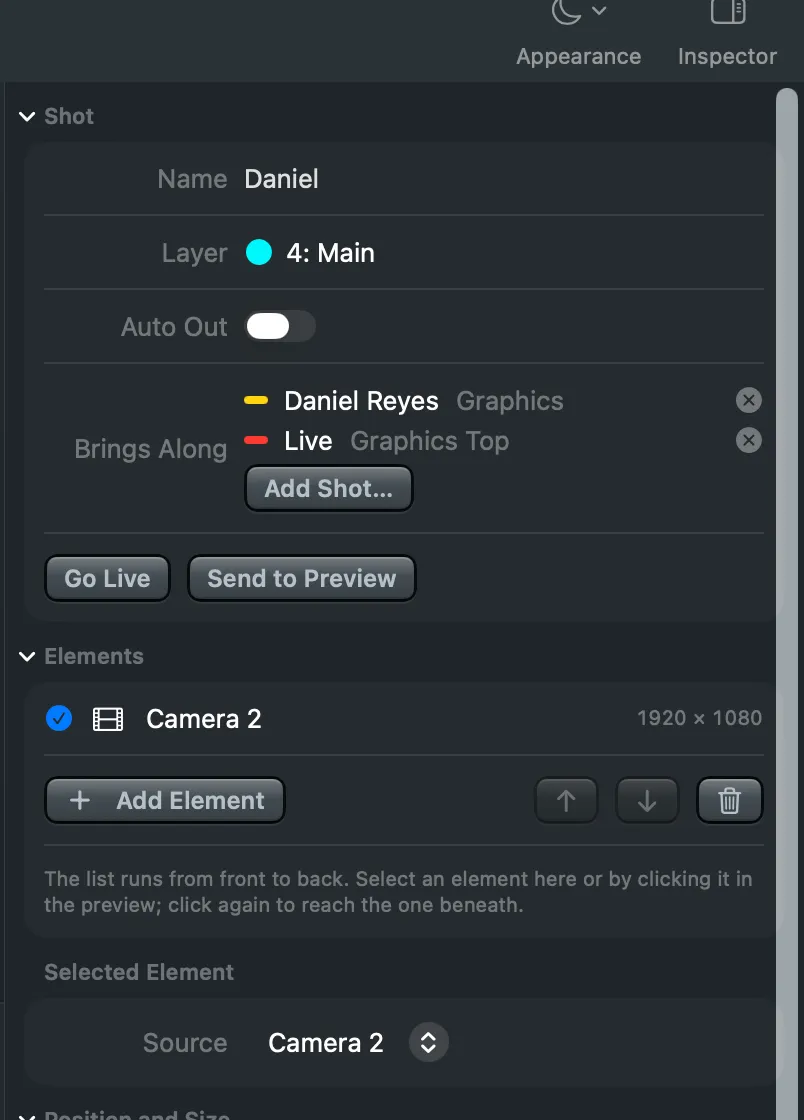
The shot’s tab gets a yellow lamp for each. To take one off the list, click the cross beside it.
Step 2: Press the shot with what it brings along
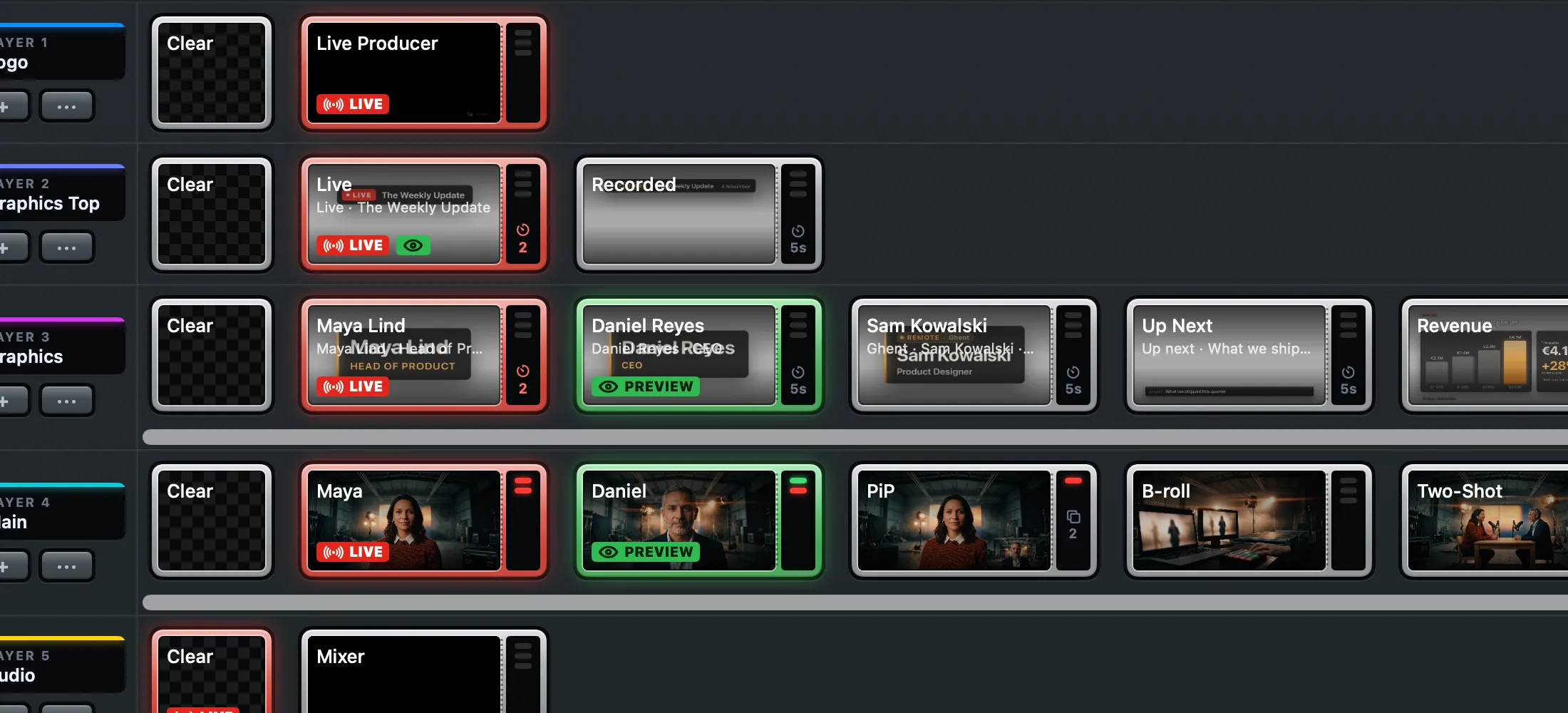
Section titled “Step 2: Press the shot with what it brings along”Click the shot’s tab, on the right of its tile. The shot and what it brings along go to the preview together; press Take to send them all. With Auto Live on, they go live at once.
| To | Do |
|---|---|
| Press the shot alone | Click its picture |
| Swap alone and with | Hold ⌥ while you click |
| Go live with what it brings along | Double-click the tab, or select the shot and press ⌥⌘Return |
| Send it to the preview with what it brings along | Select the shot and press ⌥⇧Return |
| Do the same from the Stream Deck | Hold the shot’s key; see Held keys |
Verify
Section titled “Verify”- Pointing at the tab outlines the shots it brings along in yellow and black dashes, like caution tape, in Light and Dark alike.
- After the press, their tiles say PREVIEW, or LIVE with Auto Live on, and the lamps in the tab turn green or red with them.
- Click the picture alone later: the shot changes, and a lower third that is still live stays.
Related
Section titled “Related”Describes Live Producer 0.330 · 10 November 2026