
Put a part, a slide, a script tag, a note or a person in the script from the // menu, with @, or in the old syntax; change or remove one.
Give the script its structure as you write: who is on, where the slide clicks, what the audience should see, what the crew should know. To read what each tag means, see Script editor.
Before you start
Section titled “Before you start”- The show is open on its Script tab and the section is yours to edit. See Write the script together.
Step 1: Open the menu with //
Section titled “Step 1: Open the menu with //”Type // anywhere in the words: at the start of a line, after a space, or right after a word, such as today// at the end of a sentence. A menu opens where you type; keep typing
to narrow it, or move with the arrow keys and press Enter.
| Group | Inserts |
|---|---|
| Part | Host, Live, Speaker, Recording, Video, Poll or Outro: a new part starts here, and the words after it are its words |
| Slides | New Slide or Click: the slides move on where the tag sits |
| Script Tag | Shot (one of the standard shots), Lower Third (a presenter), Graphic, Audio or Interaction: what the script asks for at the word before the cursor; guidance only, it fires nothing |
| Notes | Note for the operator, Note to Presenter (also on the prompter), Note to Crew (also on the phone remote) |
The menu does not open inside a web address.
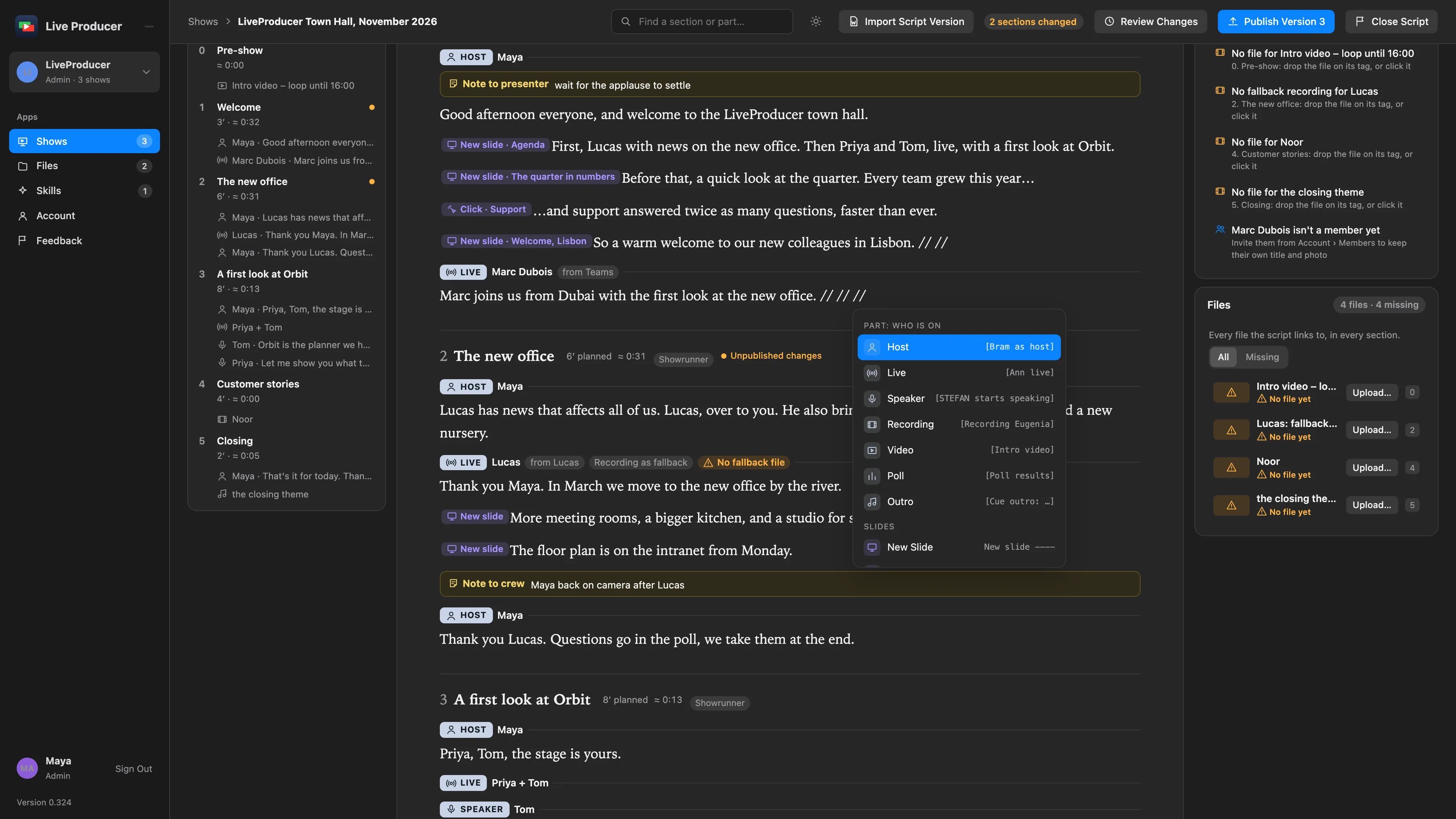
When the tag needs a value, its fields open at once with the cursor in the first one: a lower third offers the person named last before the cursor, and a new slide takes its name from the words after it. A tag that needs nothing, such as Click, is placed and you type on.
Step 2: Name a person with @
Section titled “Step 2: Name a person with @”Type @ and the first letters of a name, then pick the person: a presenter of the show, or a
member of the company, who then becomes a presenter. The name stays in the words as it is
spoken, and the person is a presenter of that part.
Step 3: Or type the old syntax
Section titled “Step 3: Or type the old syntax”A direction typed on a line of its own turns into its tag when you press Enter, with no AI involved. The forms a script file uses all work:
[Maya as host][Lucas live, recording as fallback][TOM starts speaking][Recording Noor]New slide ---- AgendaClick ----[Note to crew: Maya back on camera after Lucas]Pasting several lines converts them all at once, so a script written elsewhere lands with its parts, slides and notes in place. See the directions in Script structure.
Step 4: Change a tag
Section titled “Step 4: Change a tag”Click a tag. Its fields open beside it:
| Tag | Fields |
|---|---|
| Part | Kind, Who; for a live part Recording as fallback and Joins from; for a video Loops until a time; Planned minutes; its file |
| New Slide, Click | Kind, Slide name |
| Script tag | Kind, the Person or What it shows, its file |
| Note | For (operator, presenter or crew), the note |
| Person | Person |
A part’s fields also say how it reads in a script file. Click Done when you are finished. In a section that is read-only for you the fields open, but nothing in them can be changed.
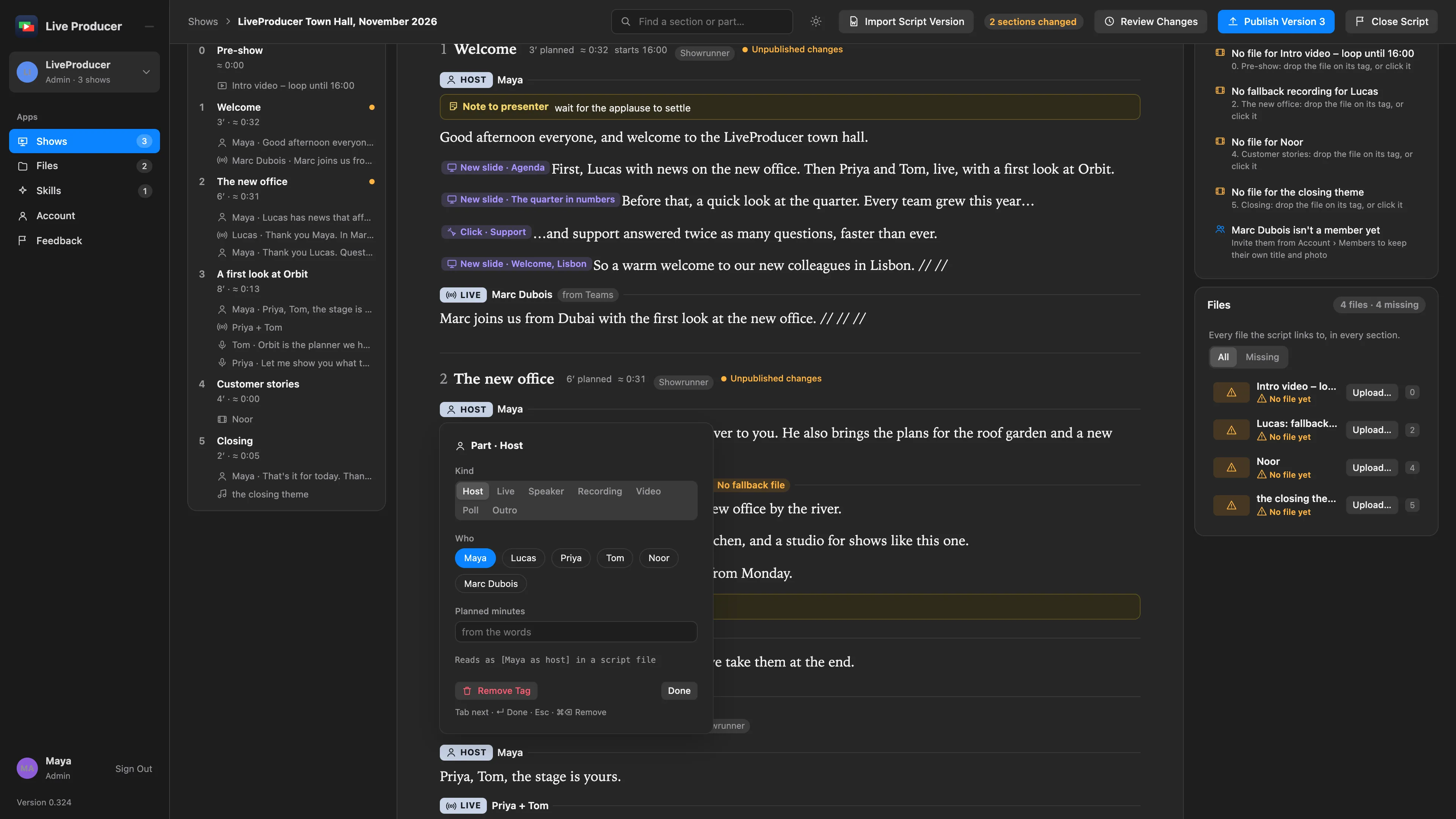
A section’s head opens the same way: click it for the title, the planned minutes, the start time and whether it can be shortened when the show runs late. Who edits the section is set in its Edits row; see Invite people.
Step 5: Remove a tag
Section titled “Step 5: Remove a tag”Open the tag and click Remove Tag, or select it and press Delete. The words stay: removing a part tag joins its words to the part before it.
Stay on the keyboard
Section titled “Stay on the keyboard”Every tag can be placed and filled in without the mouse. The keys are listed at the foot of each tag’s fields.
| Key | Does |
|---|---|
| Tab, ⇧Tab | Go to the next or previous field |
| ← → | Move within a choice: the kind, who is on, who a note is for |
| Space | Turn a person on or off in Who |
| Return or Esc | Done: the fields close and the cursor is right after the tag |
| ⇧Return | A new line in a note |
| ⌘Return | Open the fields of the tag next to the cursor again; Return does the same on a selected tag |
| ⌘⌫ | Remove the tag and keep the cursor where it was |
Verify
Section titled “Verify”- The tag is drawn in the words in its tone, with its symbol and word.
- A new part is in the outline under its section, with who is on.
- A script tag stays at its word when you change the words before it.
Related
Section titled “Related”Describes Live Producer 0.330 · 10 November 2026