
Move the company from Solo to Team, so more people can prepare more shows. To read what the plans include and how billing works, see Plans and billing.
Before you start
Section titled “Before you start”- You are an admin, or a member with Billing.
- You know who pays: the business’s name, its full address and its VAT number, or your own name and address.
- You have a card at hand.
Step 1: Open the Billing page
Section titled “Step 1: Open the Billing page”Open Account in the rail and click Upgrade on the Billing card, or Billing in the list on the left. The plans are on the Plan card.
Step 2: Pick yearly or monthly
Section titled “Step 2: Pick yearly or monthly”Above the plan cards, choose Yearly or Monthly (+20%). The cards show the price for that period: yearly says how much less it costs than monthly, monthly says what the year costs that way.
Step 3: Choose the plan
Section titled “Step 3: Choose the plan”Click Choose on the plan’s card, for example Choose Team. The card says how many editors the price includes (3 on Team) and what each extra one costs. The company starts with the included editors, or with the number of admins and showrunners it has when that is more. You can add editors after paying.
Stripe’s checkout opens.
Step 4: Pay in the checkout
Section titled “Step 4: Pay in the checkout”The checkout asks for everything the invoice needs. Fill in:
| Field | Holds |
|---|---|
| Where the receipt goes. | |
| The card | Its number, expiry date and security code. |
| Name and address | The business or the person the invoice is made out to, with the full address: a business invoice needs it. |
| VAT number | For a business: its number, so the invoice shows the right VAT. |
Pay. Stripe brings you back to the Billing page.
Or: try Team first
Section titled “Or: try Team first”On Solo, Try Team for 14 Days under the plans gives the company Team for two weeks, with no card. Choose a plan any time to keep it; otherwise the company goes back to Solo at the end. A company tries Team once.
Verify
Section titled “Verify”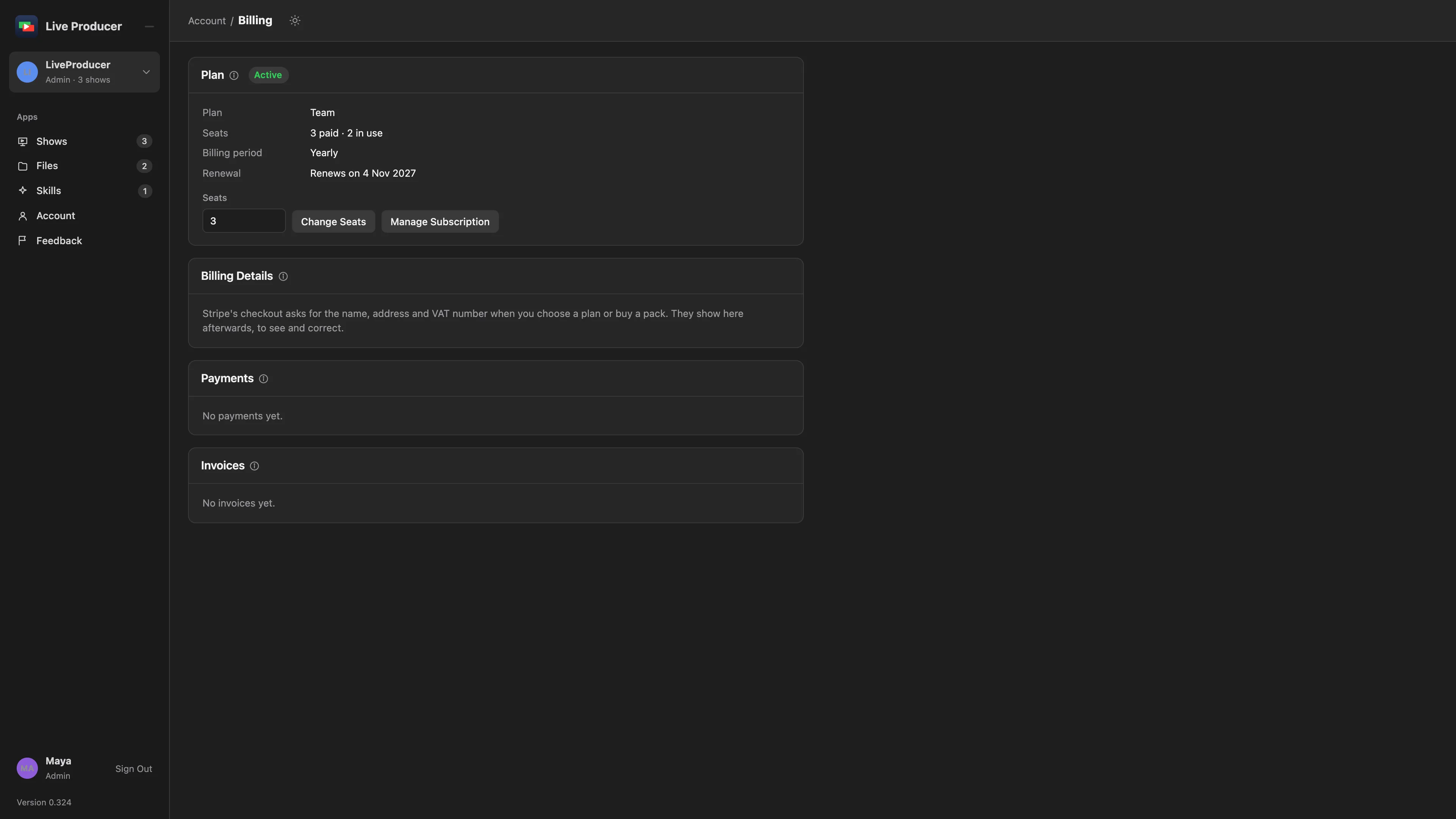
- The Plan card shows the plan with Active, the editor seats, the billing period and the renewal date.
- The invoice is under Invoices, marked Paid, and the payment under Payments.
- The name, address and VAT number you typed show under Billing Details.
Related
Section titled “Related”Describes Live Producer 0.330 · 10 November 2026