
See what the draft changes before you publish it, and what a pulled version changed in the Studio.
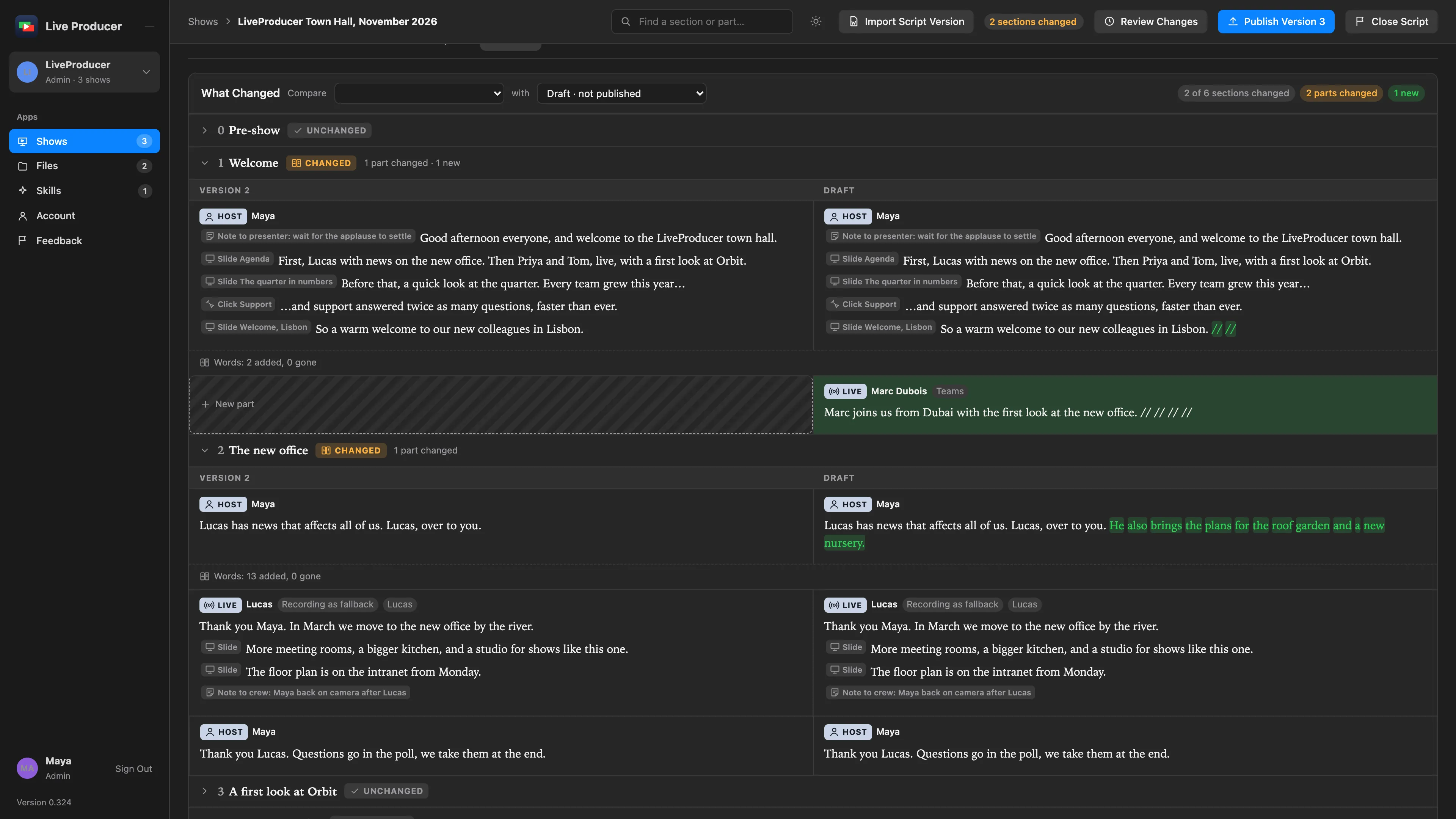
See the two versions of the script side by side, with every changed word and tag marked, on the web before you publish, and marked in the script in the Studio when you pull it. To read how the comparison works, see What changed in a version.
Before you start
Section titled “Before you start”- On the web: you are an admin or a showrunner, and the show has at least one published version.
- In the Studio: the show has a script pulled from its web show. See Pull a script.
Step 1: Review the draft before you publish
Section titled “Step 1: Review the draft before you publish”Open the show on Live Producer Platform and click Review Changes, beside Publish Version N. The Versions tab opens, comparing the last published version with the draft. Each section is a row, open when it changed and folded when it did not, with its state beside its title: Changed, New, Removed, Renumbered or Unchanged. Under an open row the two versions stand in two columns, part by part: struck words are gone, highlighted words are new, and a tag’s chip is marked when it was added, removed, changed or moved. The lines under a part say the same in words.
When it reads right, click Publish Version N; see Publish a version.
Step 2: Compare any two versions
Section titled “Step 2: Compare any two versions”On the Versions tab, choose a version in each of the two menus above the comparison. The right one can be the draft. The chips above the sections count what differs.
Step 3: See what the version changed in the Studio
Section titled “Step 3: See what the version changed in the Studio”In the Studio, click Pull Version N… in the Script window’s web show bar. The bar says what the version changed, and the script marks it: New, Changed, Moved from or Removed beside a part or section, new words and tags in green, and a line for what went. Hide Changes draws the script without the marks; Dismiss clears them.

Step 4: Set the show up for it
Section titled “Step 4: Set the show up for it”Click Suggest Setup Changes in the Script window’s toolbar. It lists what the new version asks for that the show lacks, such as a lower third for a new presenter. Apply the rows you want; with Spelvin on your account, Ask Spelvin adds its suggestions under them. See Setup from the script.
Verify
Section titled “Verify”- On the web, the Versions tab’s chips count the changed sections, and the open rows are the changed ones.
- In the Studio, the web show bar says what version N changed, and the script shows its marks.
- An applied row shows Applied, and Edit › Undo takes it back.
Related
Section titled “Related”Describes Live Producer 0.330 · 10 November 2026