
Find each invoice and receipt on the Billing page, see what it is for, and download it as PDF.
Get the invoices for your bookkeeping, and check what each charge was for. To read who sends the invoices and why they come from Link, see Plans and billing.
Before you start
Section titled “Before you start”- You are an admin, or a member with Billing. A bookkeeper can have Billing alone; see Invite people.
Step 1: Open the invoices
Section titled “Step 1: Open the invoices”Open Account › Billing and go to Invoices. Every invoice Stripe made for the company is there, newest first:
| Column | Says |
|---|---|
| Invoice | The invoice’s number. |
| For | What it is for, such as Subscription: Team, 3 seats, Seats added: 3 → 4, Plan change: Solo → Team, Renewal or Spelvin Pack. |
| Date | The day it was made. |
| Period | The time it covers, for a plan. |
| Amount | The total, VAT included. |
| Status | Paid, Due (not paid yet), Void (cancelled) or Not collected. |
Step 2: Download the PDF
Section titled “Step 2: Download the PDF”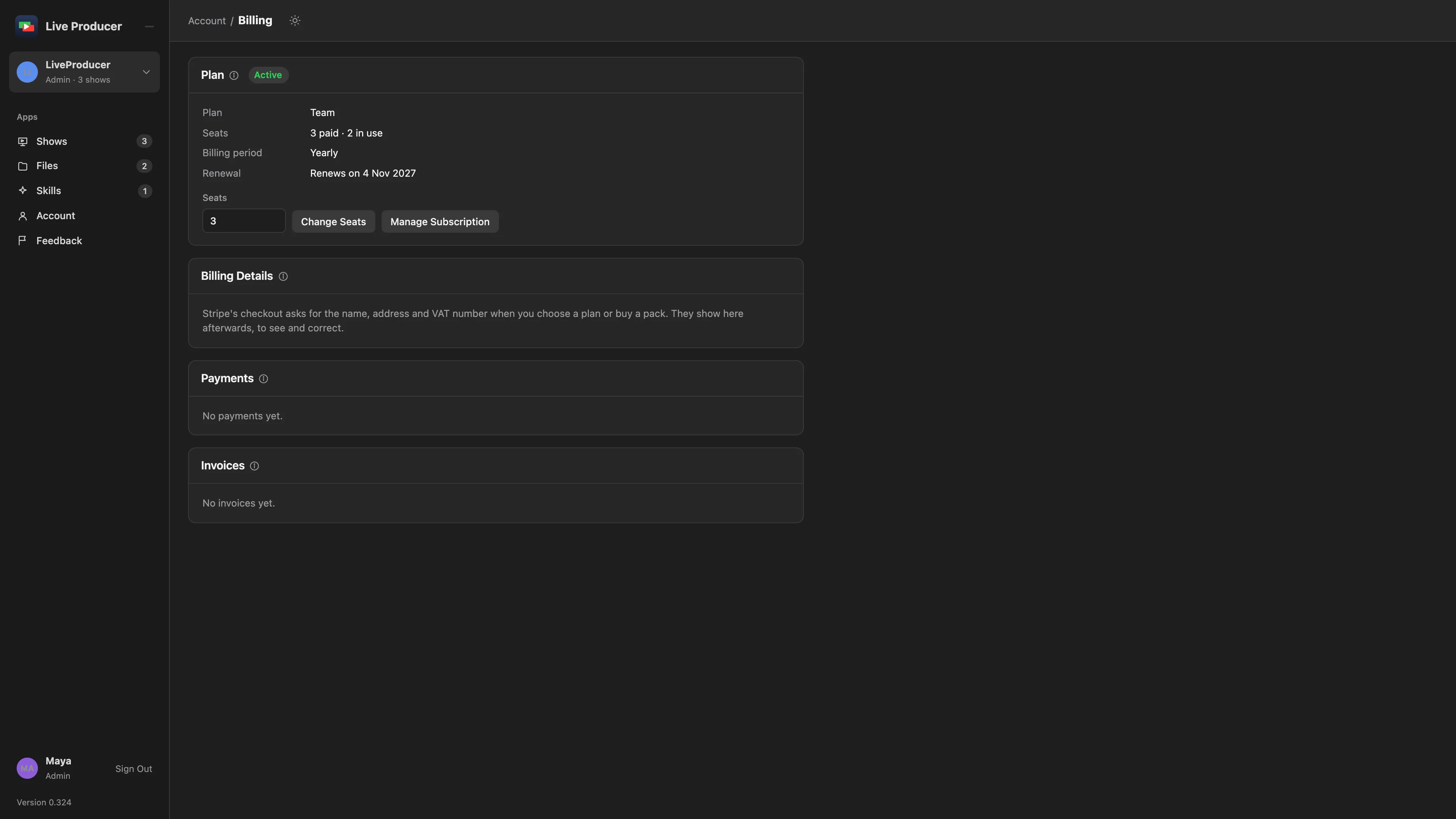
Click Download on the invoice’s row. The PDF is the invoice to book.
View opens the invoice on Stripe’s page instead, where a Due invoice can be paid.
Step 3: Get a receipt
Section titled “Step 3: Get a receipt”Under Payments, each charge has its date, what it was for, the amount and its status. Click Receipt for Stripe’s receipt of that payment.
Verify
Section titled “Verify”- The PDF names Link as the seller, your billing details as the buyer, and Live Producer on its line.
- The amount matches the charge on your card statement, which shows LINK.COM.
Related
Section titled “Related”Describes Live Producer 0.330 · 10 November 2026