
Give a recording, video, outro, fallback, graphic or audio tag its file in the script, and see in the Files card what is still missing.
Put a file where the script plays it, so a contributor brings their own recording and the showrunner sees at a glance what the show still waits for. To read how files and tags go together, see Script editor.
Before you start
Section titled “Before you start”- The part is yours: a showrunner or an admin uploads for any part, a contributor for the parts in the sections they edit, and nobody for anyone else’s.
- The tag that plays the file exists: a Recording, Video or Outro part, a live part with Recording as fallback, or a Graphic or Audio script tag. See Insert a tag. A tag still without its file says No file with a warning symbol.
- The file is a video, a sound or an image.
Step 1: Drop the file on the tag
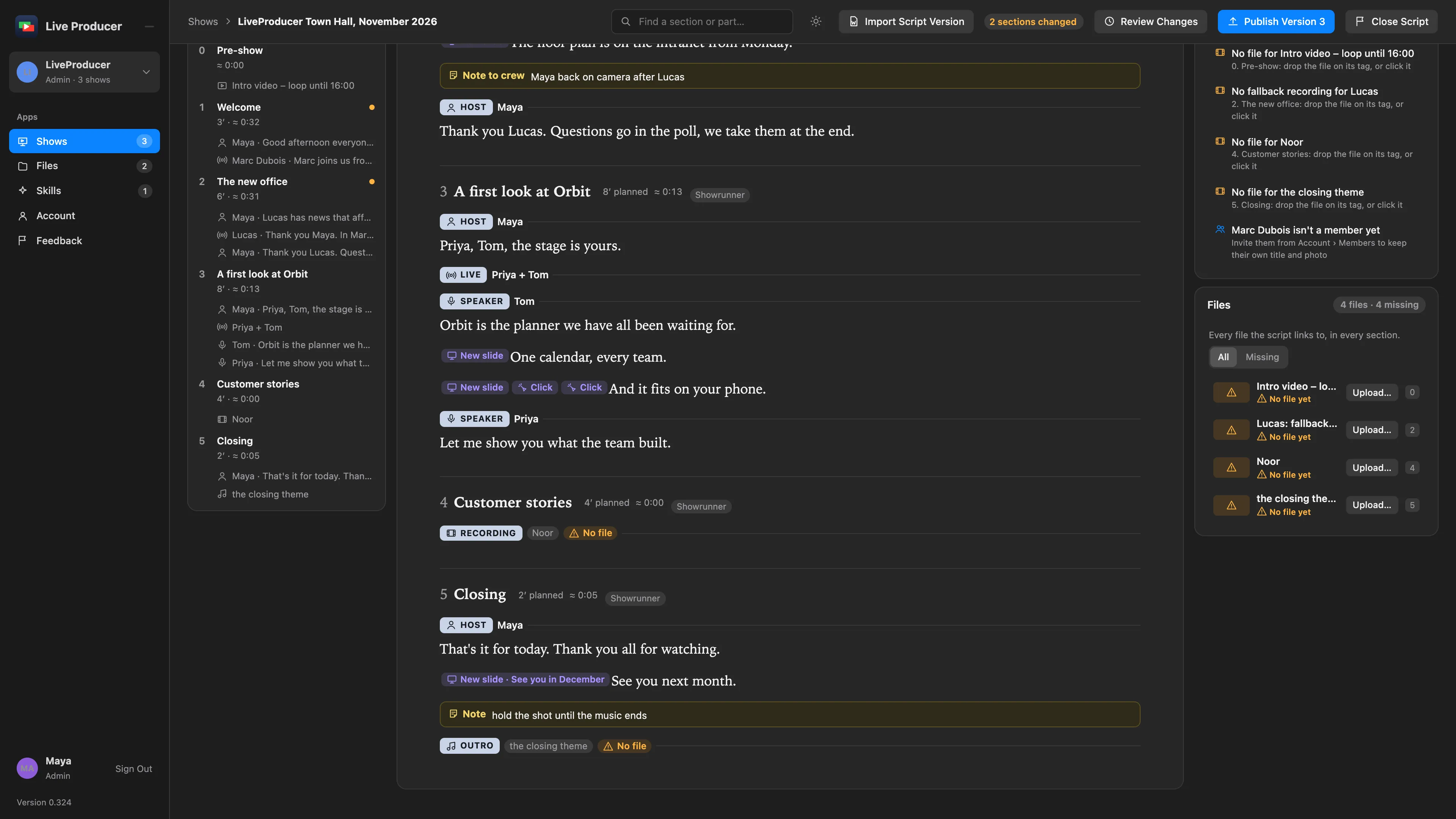
Section titled “Step 1: Drop the file on the tag”Drag the file from the Finder onto the tag. The tag shows how far the upload is, then the file’s name and length.
Step 2: Or choose it in the tag’s fields
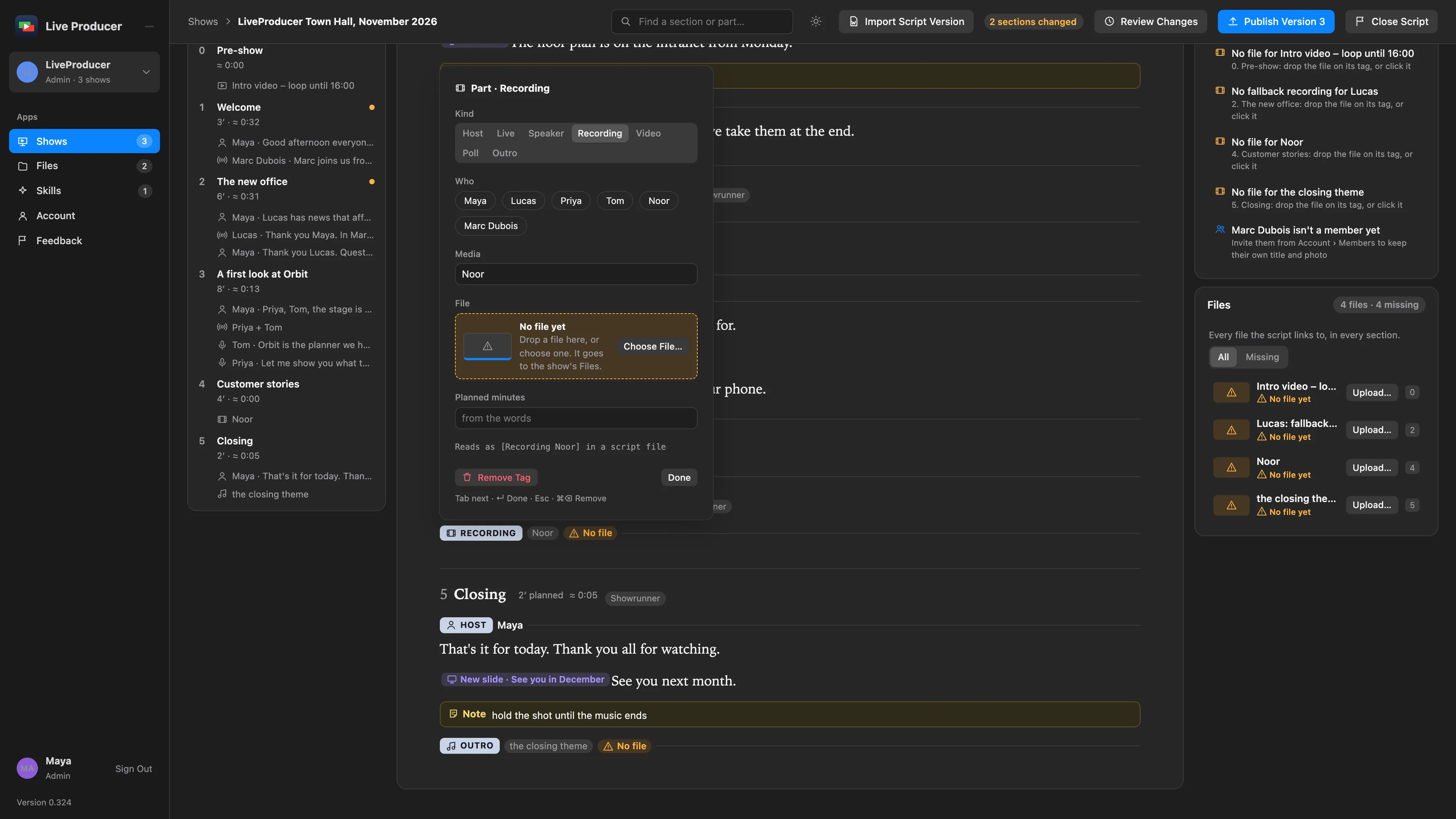
Section titled “Step 2: Or choose it in the tag’s fields”Click the tag, then Choose File… in its file box (File, or Fallback recording for a live part’s fallback, Music file for an outro, Sound file for an audio script tag) and pick the file. With a file already there the button says Replace…, and the new file is the next version of the same file.
Step 3: Check the Files card
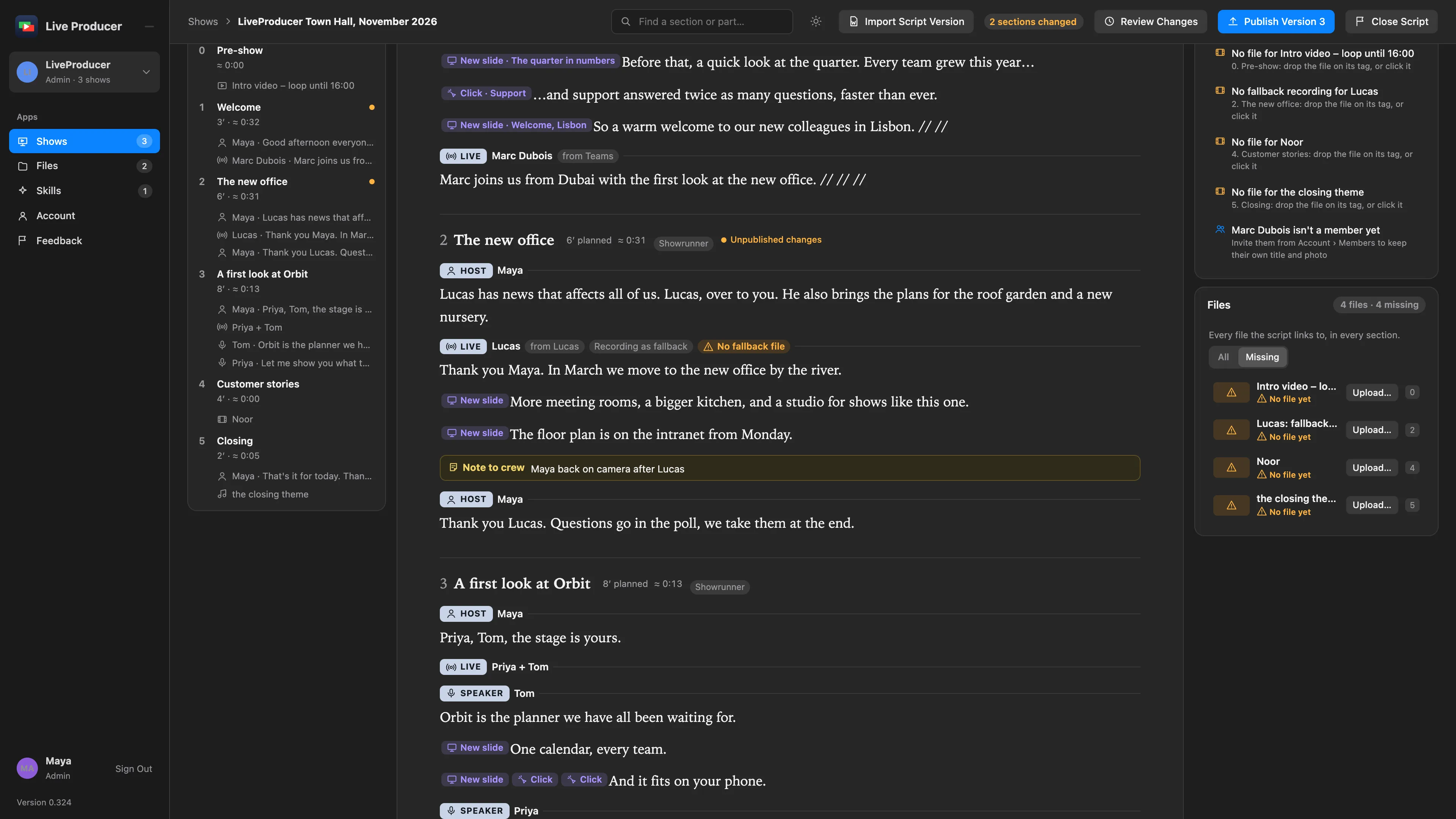
Section titled “Step 3: Check the Files card”The Files card beside the script lists every file the script links to: a still or a symbol, what it is, the file’s name, length, version and who uploaded it, or No File, and the section’s number. All lists them all; Missing only those still without a file. Click a row to go to its tag in the script, with its fields open. Upload… on a row without a file chooses one; Replace… on a row with one uploads a new version. A row takes a dropped file too.
A contributor’s Files card lists the files of the sections they edit.
Step 4: Or send it from your AI
Section titled “Step 4: Or send it from your AI”An AI you connected uploads for the same parts you may. Ask it to upload the file for your part: from your Mac (Claude Code) it sends the file itself; from a chat (Claude, ChatGPT) it gives you the show’s page to drop the file on. Either way the file lands as the next version of the part’s file, with your name on it. See Connected AI.
Step 5: Take it into the Studio
Section titled “Step 5: Take it into the Studio”The file is one of the show’s files, in versions, so it is on the show’s Files tab and on the Files page as any upload. The Studio downloads it with the show’s other files: a Mac with the show’s script takes it by itself. See Upload a file.
Verify
Section titled “Verify”- The tag shows the file’s name and no warning symbol.
- In the Files card, Missing no longer lists it, and its row shows the version.
- The show’s Files tab lists the file, and the Files readiness meter counts it.
Related
Section titled “Related”Describes Live Producer 0.330 · 10 November 2026