
A show starts on the Live Producer Platform. You make it there, publish it, then pull it into Live Producer Studio to run it. To read about who can do this, see People and roles.
Before you start
Section titled “Before you start”- You are an admin or a showrunner in the company.
- You have the script as a Word, PDF, Excel or CSV, Markdown or text file, or you start from scratch.
- For the last steps: the Studio is signed in with your account. See Sign in.
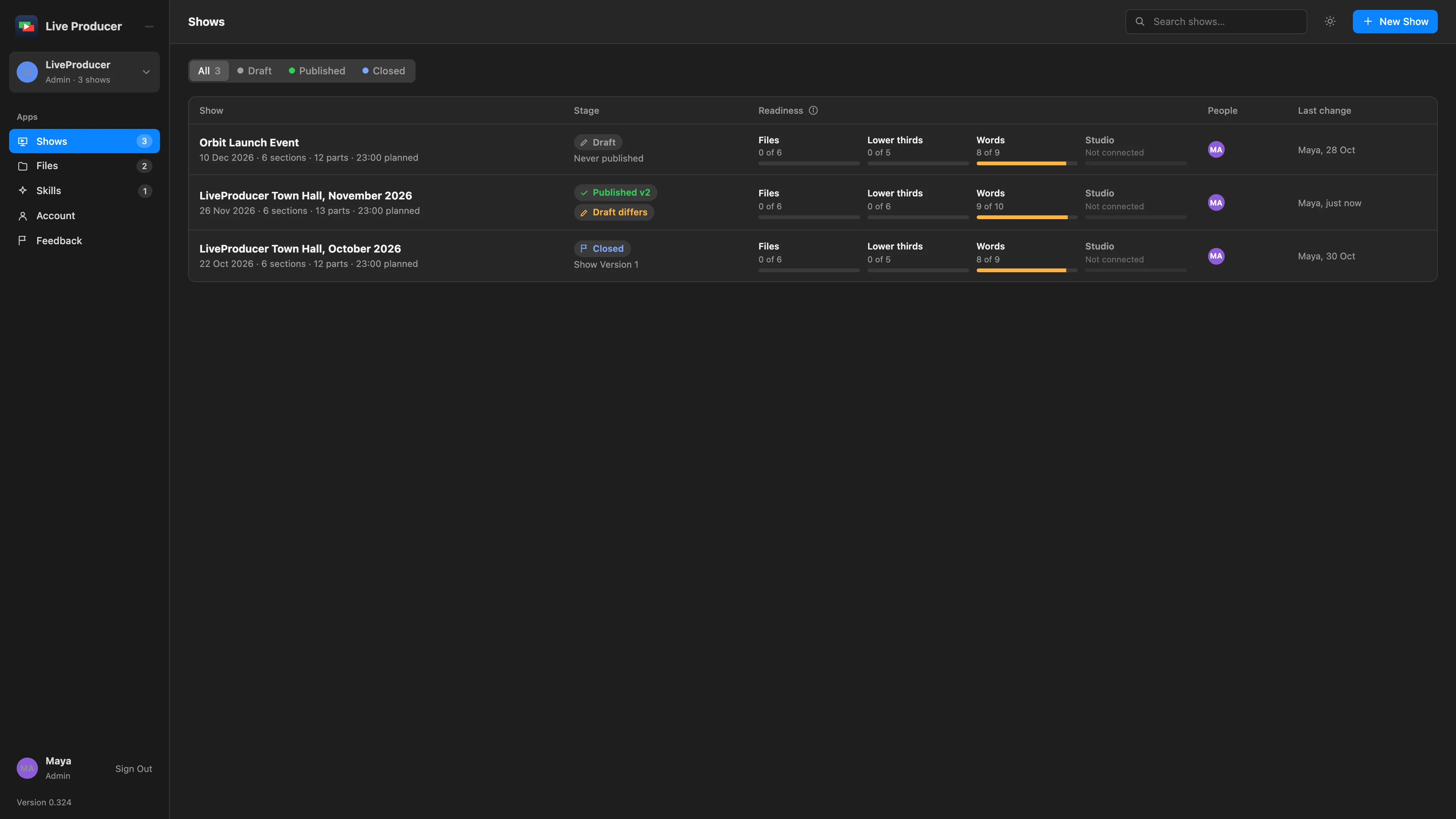
Step 1: Open New Show
Section titled “Step 1: Open New Show”On the Shows page, click New Show.
Step 2: Choose how to start
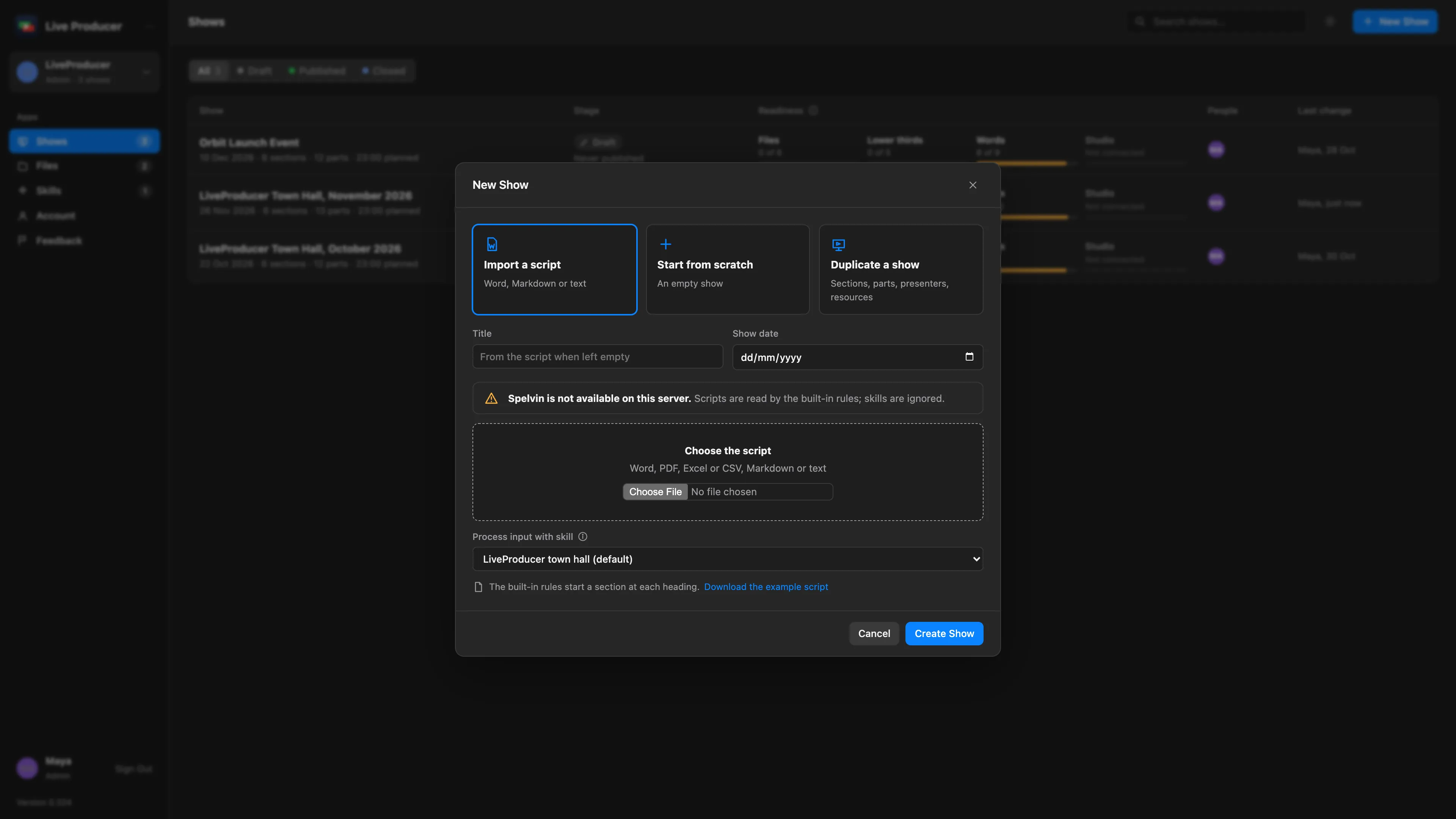
Section titled “Step 2: Choose how to start”Choose one:
| Choice | Makes |
|---|---|
| Import a script | A show read from your script. |
| Start from scratch | An empty show. |
| Duplicate a show | A copy of another show’s sections, parts, presenters and files. Choose it under Copy from. |
Type a Title, or leave it empty to take the script’s. Set the Show date.
Step 3: Choose the script and the skill
Section titled “Step 3: Choose the script and the skill”For Import a script, click Choose the script and pick the file. Under Process input with skill, pick the skill that knows how your scripts are written, or leave the default. See Script reading and Skills.
Step 4: Create the show
Section titled “Step 4: Create the show”Click Create Show. Spelvin reads the script into sections and parts; the dialog shows how far it is. The show editor opens when it is done.
Step 5: Check the script
Section titled “Step 5: Check the script”Go through the script. A section marked Name suggested by Spelvin had no heading in the script; click Keep Name, or click the section’s head and type its title. Everything else you change right in the words; see Write the script together.
Step 6: Publish the first version
Section titled “Step 6: Publish the first version”Click Publish Version 1, then Publish. The Studio pulls published versions only. See Publish a version.
Step 7: Pull it into the Studio
Section titled “Step 7: Pull it into the Studio”In the Studio, make the show to run it in with File › New Show… and the layer setup it should start from. Choose Window › Script (⌥⌘S) and click Pull beside the web show. Then click Suggest Setup Changes and apply the shots and lower thirds the script asks for. See Pull a script.
Verify
Section titled “Verify”- On the web, the show’s App meter says Linked, v1 pulled.
- In the Studio, the Script window shows the script, and its web show bar says Up to Date · Version 1.
Related
Section titled “Related”Describes Live Producer 0.330 · 10 November 2026