
Start a section where the caret is, move one up or down, merge it with the one before or delete it, and say who edits it.
Shape the show while the words are being written: cut a long section in two where it turns, put the sections in the order the show runs, fold two together, or drop one. To read why the sections are the showrunner’s, see Script editor.
Before you start
Section titled “Before you start”- You are an admin or a showrunner. A contributor sees every section and its fields, but changes none of the structure.
- The show is open on its Script tab. See Write the script together.
Step 1: Start a section at the caret
Section titled “Step 1: Start a section at the caret”Click in the words where the new section should begin and type //. Under Section,
choose Start a Section Here. The words from the caret to the end of the section move into
the new one, which opens its fields with the title selected: type the title and press Enter.
The parts, slides and script tags that moved are still the same ones, so the Studio keeps the shots it made for them. The new section takes its number from its place, and the sections after it move up one.
Step 2: Open a section’s fields
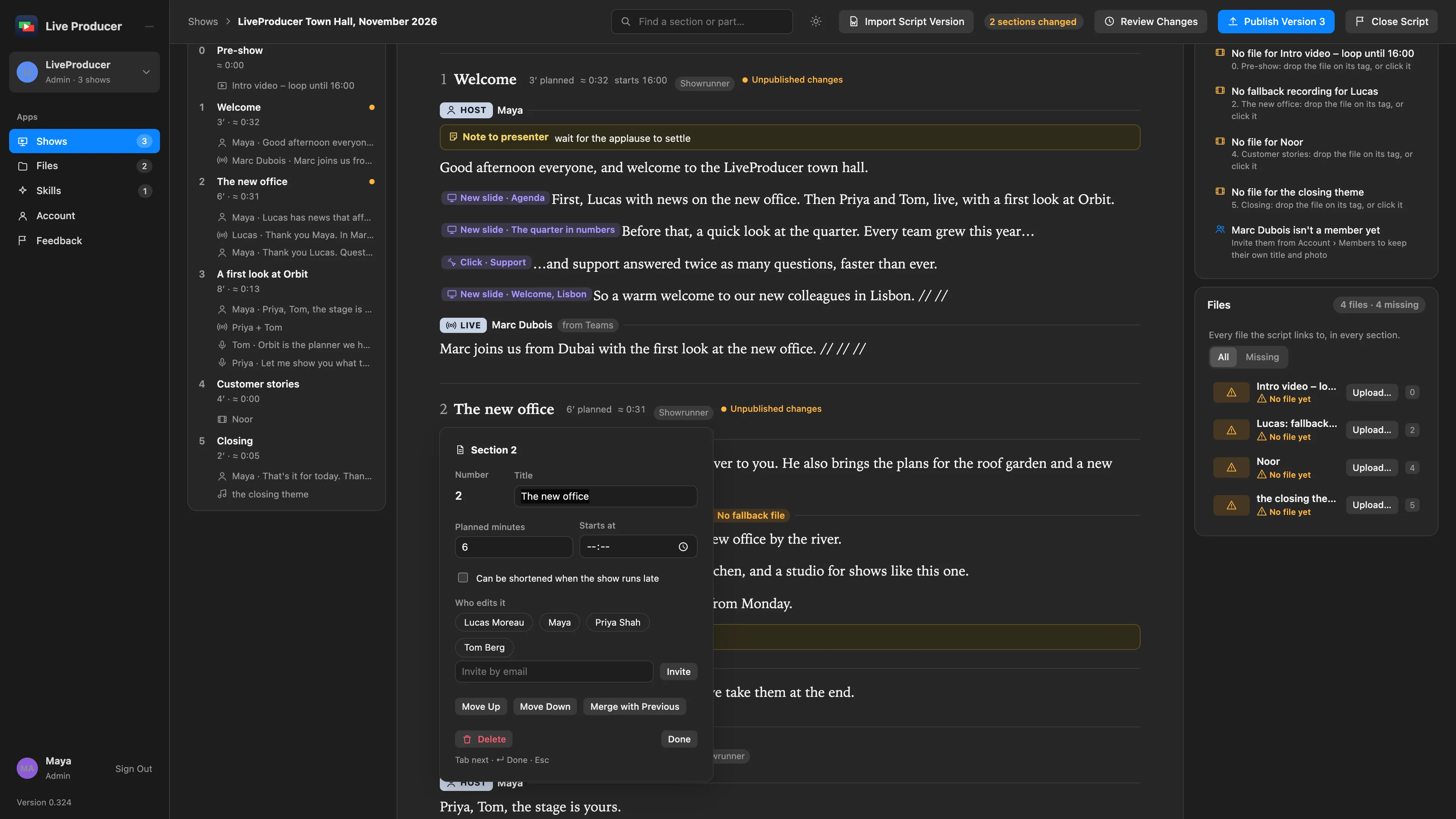
Section titled “Step 2: Open a section’s fields”Click the section’s title in its head. Its fields open beside it:
| Field | Holds |
|---|---|
| Number | Its place in the show. Shown, never typed. |
| Title | The section’s name, as the outline and the Studio show it. |
| Planned minutes, Starts at | The time it has, and when it starts. |
| Can be shortened when the show runs late | Whether the Studio may take time from it. |
| Who edits it | A button per member: on, they edit the section. A showrunner sets these. |
At the foot, for a showrunner: Move Up, Move Down, Merge with Previous and Delete.
Step 3: Move, merge or delete
Section titled “Step 3: Move, merge or delete”- Move Up or Move Down swaps the section with its neighbour. The first section cannot move up, the last not down.
- Merge with Previous joins the section’s words to the end of the section before it, tags included, and the section itself goes. The first section has no previous one.
- Delete asks first: the button becomes Delete Its Words Too, and a second click removes the section with everything in it. To keep the words, merge instead.
After each, the sections are numbered by their new places, in the script and in the outline.
Step 4: Say who edits it
Section titled “Step 4: Say who edits it”In Who edits it, click a member’s name to make them an editor of the section; click it again to take them off. The chips in the section’s head change for everyone who has the show open, and the section opens for the person on the spot, with a bar in their colour and You edit. To invite someone who is not a member yet, see Invite people.
Verify
Section titled “Verify”- The outline lists the sections in their new order, each with its new number.
- Every section you changed says Unpublished changes in its head, and Publish Version N says how many sections changed. See Publish a version.
- A member you made an editor sees You edit on the section without reloading.
Related
Section titled “Related”Describes Live Producer 0.330 · 10 November 2026