
Give Claude Code or Cursor the address of Live Producer Studio's local MCP server on the show Mac, so it sees the open show and prepares it with you: the state, a picture, a shot in preview, the script pulled, a setup proposed; from another device, with the remote's token.
Let the AI tool on the show Mac see the open show and prepare it: the sources, layers and shots, the script pulled, a shot in preview, a setup or a Stream Deck page proposed for you to apply. To read what it may and may not do, see Connected AI.
Before you start
Section titled “Before you start”- The Studio runs with a show open, and remote control runs: Status under Settings › This Mac › Remote says so. The Studio listens on its remote control port, 8800 unless you changed it. See Control API.
- Claude Code or Cursor is installed on the same Mac. From another device you also need the remote’s token (Step 3).
Step 1: Copy the command
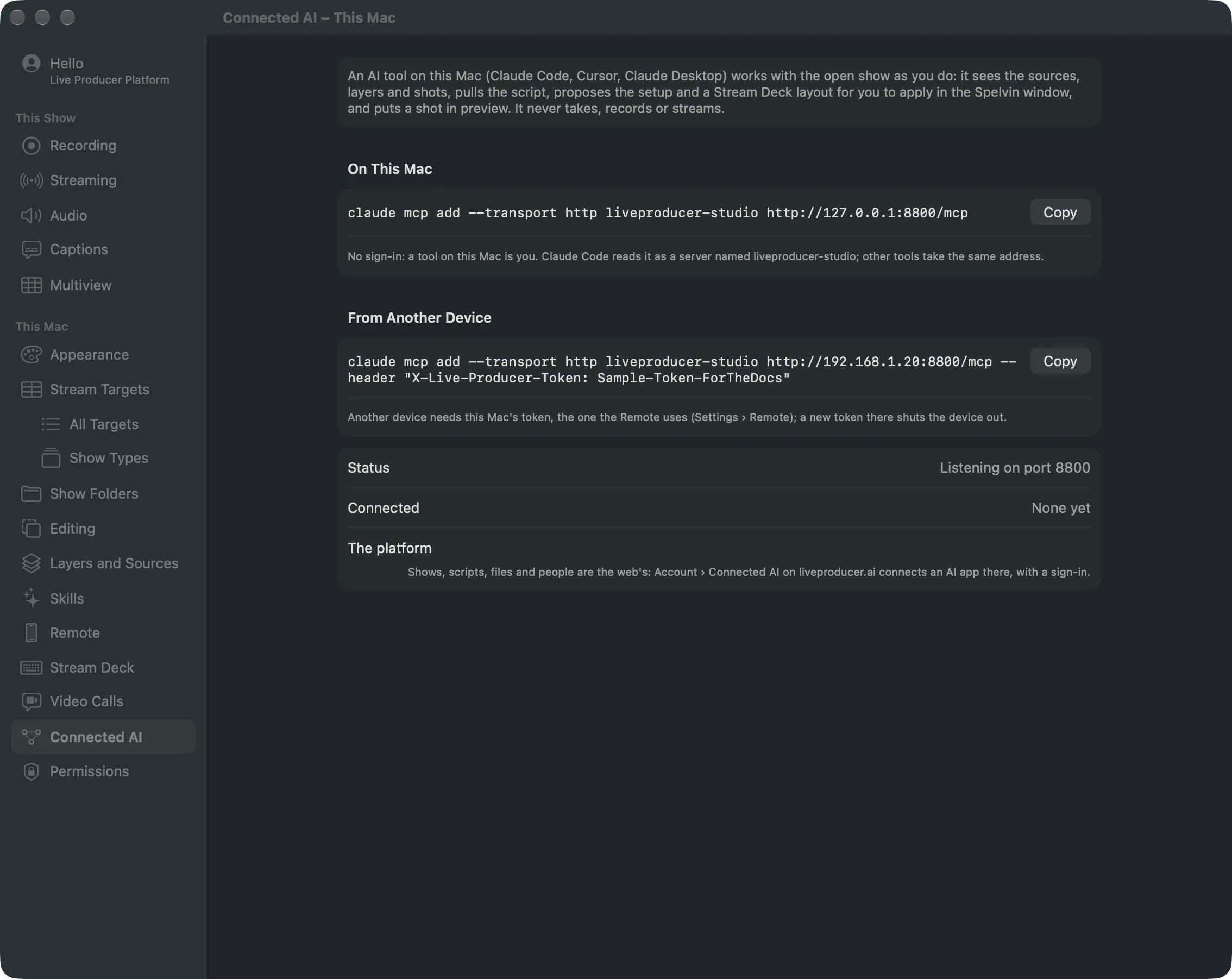
Section titled “Step 1: Copy the command”Open Settings › This Mac › Connected AI. Under On This Mac is the command for a tool on this Mac; Copy copies it. No sign-in is asked: a tool on this Mac is you.
Step 2: Add it in your tool
Section titled “Step 2: Add it in your tool”In Claude Code, paste the command in a terminal:
claude mcp add --transport http liveproducer-studio http://127.0.0.1:8800/mcpIn Cursor, add a server with the same address under Cursor Settings › Tools & MCP, or in
~/.cursor/mcp.json:
{ "mcpServers": { "liveproducer-studio": { "url": "http://127.0.0.1:8800/mcp" } } }Any tool that takes the address of an MCP server over HTTP works the same way.
Step 3: From another device (optional)
Section titled “Step 3: From another device (optional)”A tool on another machine needs this Mac’s address and the token the remote uses. The command under From Another Device carries both; copy it there. A new token under Settings › This Mac › Remote shuts that device out until you copy the command again. See Remote and token.
Step 4: Ask it
Section titled “Step 4: Ask it”- “What does the show look like right now?”
- “Put Maya’s camera in preview and look at it.”
- “Pull the newest version and propose the setup for it.”
- “Put the show’s shots on the Stream Deck’s first page.”
A proposal opens in the Spelvin window under the tool’s name; Apply takes it, as one edit you can undo. Taking, recording and streaming stay yours: the tool says so when asked.
Verify
Section titled “Verify”- Connected under Settings › This Mac › Connected AI names your tool once it has talked to the Studio.
- “What does the show look like?” answers with the open show’s sources, layers and shots.
Related
Section titled “Related”Describes Live Producer 0.330 · 10 November 2026