
A pull brings the script only; Suggest Setup Changes lists what it needs, row by row; the Script window marks what changed, holds the web shows and the Timeline, and the prompter shows the same colours.
New and improved
Section titled “New and improved”Set the show up from the script, row by row
Section titled “Set the show up from the script, row by row”Pulling a script no longer changes your switcher: the words and files come in, and the layers, shots and sources stay as you set them. What the script asks for is listed in the Script window, for you to take one row at a time.
- Suggest Setup Changes lists the lower thirds, shots and stand-ins the script needs, each with Apply and Skip, and Apply All. See Setup from the script.
- Ask Spelvin adds its suggestions under the rows. See Suggested setups.
- The first pull starts in the Script window, from your company’s list of web shows. See Pull a script.
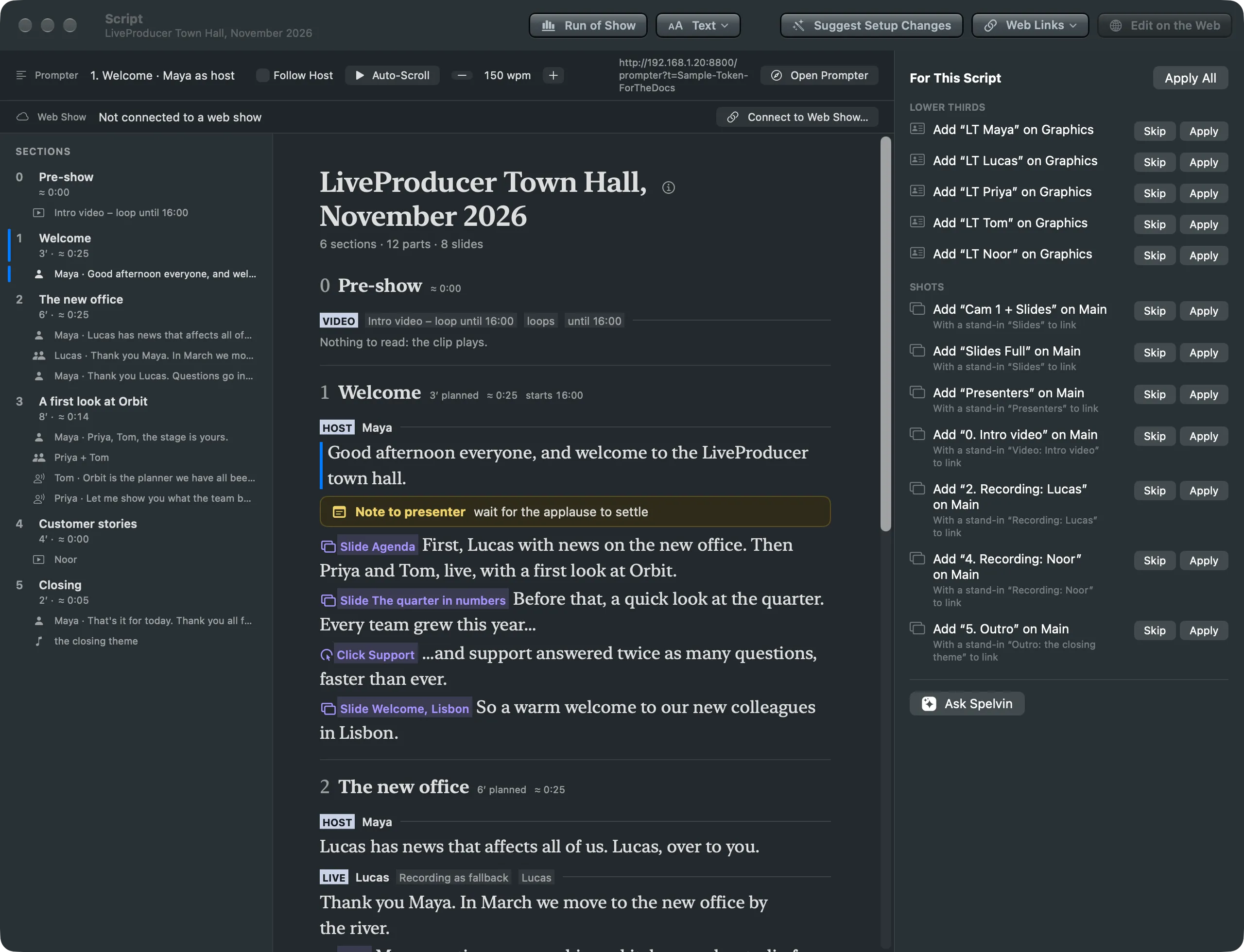
Everything about the script in one window
Section titled “Everything about the script in one window”The Script window now holds what was spread over three windows.
- After a pull, the script marks what the new version changed: new words in green, a badge on each changed part, a line for what went. See Script window.
- The Timeline is a strip above the script: the sections by time, the slides and the hosts. See Script window.
- Three switches in the Script menu decide how the window follows the prompter. See Following the prompter.
- The Web Shows, What Changed and Presenters windows are gone; the Studio only reads from the web.
The prompter in the same colours
Section titled “The prompter in the same colours”The prompter page shows each slide, shot, lower third and graphic as a small chip in the Script window’s colour, with one word or name. Notes for the crew never reach it. See Prompter.
- A click in the Script window’s Sections column now scrolls the script to that section.
More info
Section titled “More info”Describes Live Producer 0.330 · 10 November 2026