
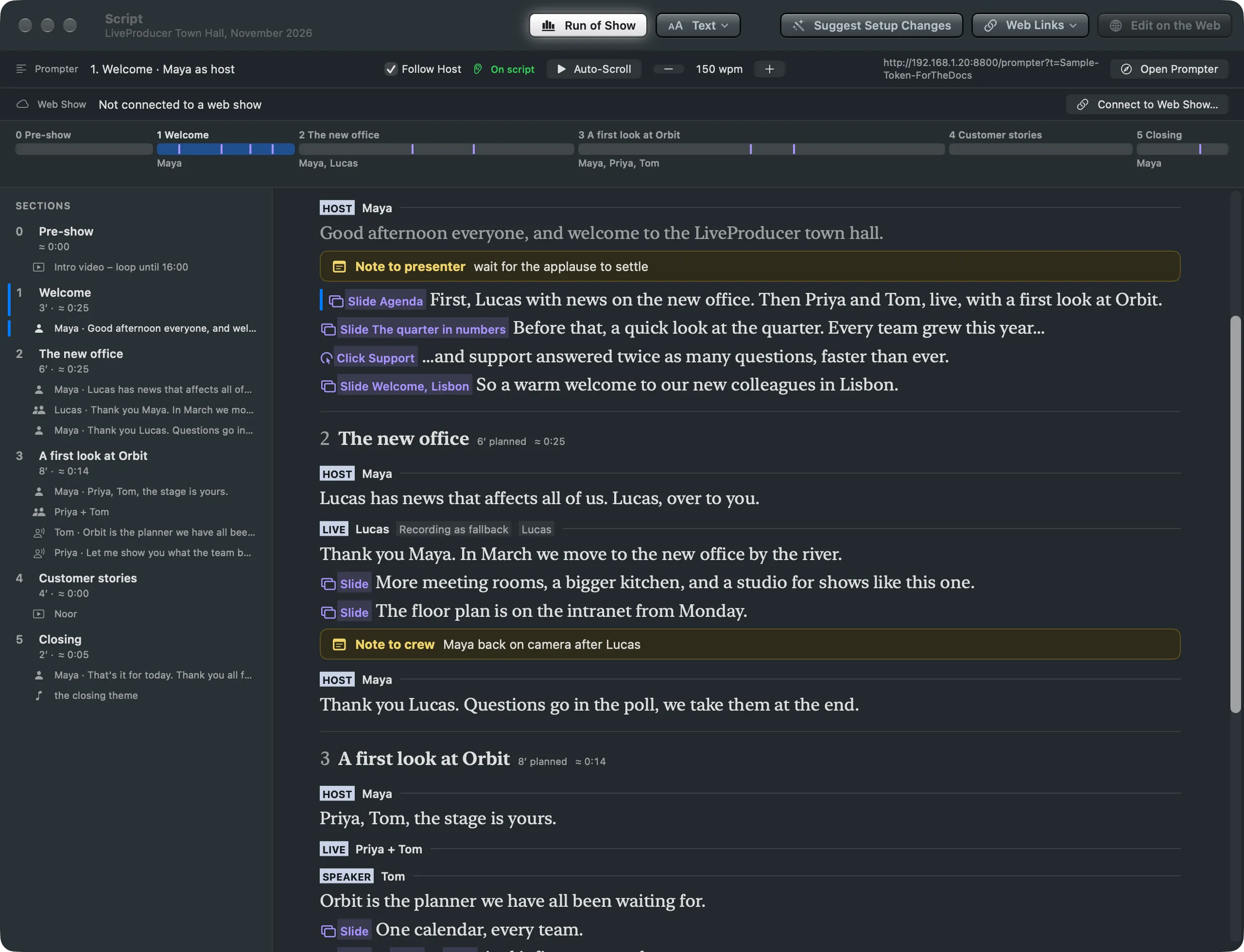
The show's script as the web lays it out, read-only: the sections, the words with their slides, script tags and notes, the Run of Show, the prompter's controls and the suggestions for the show's setup.
Open it with Window › Script (⌥⌘S), the Script button in the toolbar, or Script › Script Window. It shows the open show’s script, pulled from its web show and laid out as the web’s script editor lays it out. The script is written on the web; here you read it, follow it, drive the prompter and set the show up for it. Nothing in this window takes or changes what is on the program.
Without a script
Section titled “Without a script”A show without a script lists your company’s web shows. Pull brings a show’s script and files into the open show; Open This Show… opens the show this Mac already pulled it into; a show nobody published yet says so. Signed out, the window offers Sign In…. See Pull a script.
The toolbar
Section titled “The toolbar”Run of Show shows or hides the Run of Show strip. Text sets the script’s typeface and size on this Mac. Suggest Setup Changes opens the panel of what the script asks of the show. Web Links lists the show’s web addresses: the slides, the poll, documents, the meeting. Edit on the Web opens the web show, where the script is written.
The prompter bar
Section titled “The prompter bar”Where the prompter is, Follow Host, Auto-Scroll with its pace in words per minute, the prompter page’s address for the prompter machine, and Open Prompter. See Follow Host and Prompter.

The web show bar
Section titled “The web show bar”Shown when you are signed in or the show is connected to a web show. It says which version this Mac has and offers Pull Version N… when the web has a newer one. After a pull it says what the version changed, with Hide Changes or Show Changes for the marks in the script and Dismiss, which clears the line and the marks. Its menu opens the show on the web, shows its folder in the Finder, or disconnects the show from its web show. A script that came from elsewhere offers Connect to Web Show…. See Published versions.
The Run of Show
Section titled “The Run of Show”A strip across the window: each section as wide as its planned time, with its number and title, a tick at every slide, and who hosts it. The section the prompter is in is in the accent colour. Click a section to scroll the script there. Script › Run of Show shows or hides it; a checkmark means it is shown. Run of show is what event and sports crews call the timed list of a show; here it is drawn from the script.
The Sections column
Section titled “The Sections column”On the left, as in the web’s editor: every section with its number, its title, its planned minutes and ≈ the time its words and clips take, orange when the section runs longer than planned. Under each section, its parts, each with its kind’s symbol, who speaks or what plays, and its first words. Click a section or a part to scroll the script to it; a click never moves the prompter. See Script structure.
The script
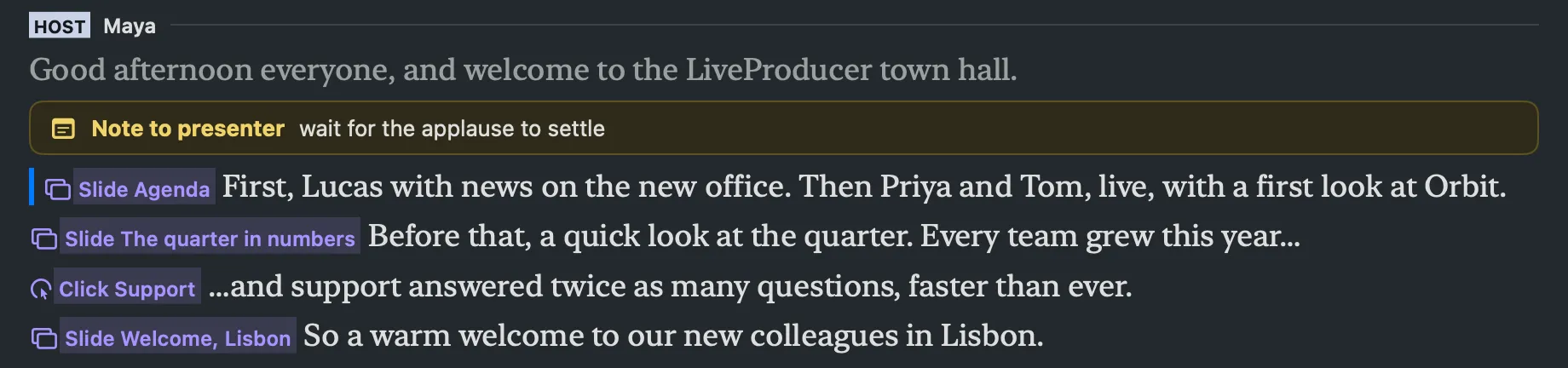
Section titled “The script”On the right, the whole script as the web shows it: the show’s title with its sections, parts and slides counted, then each section’s number, title and times, and each part with its tag (Host, Live, Video, …, who and the media) followed by its words. The slides, script tags and notes sit at their words in the web’s colours, each with its symbol:
- Slides and clicks in violet.
- Shots in teal, lower thirds in orange, graphics in purple, audio in pink.
- Notes in a yellow box after the paragraph they belong to.
They are guidance: they say what the script asks for at that word, and you switch.
After a pull, the script marks what the new version changed: New, Changed, Moved from or Removed beside a part or section, new words and tags in green, and a line for what went. A removed part stays in its place, struck through, until you dismiss the marks.

Following the prompter
Section titled “Following the prompter”Three switches in the Script menu, kept on this Mac, decide how the window follows the prompter:
| Switch | Does |
|---|---|
| Mark the Prompter’s Place | Marks the part the prompter is on and greys the words it has passed, with a bar in the column and the Run of Show |
| Follow the Prompter | Scrolls the script to each part the prompter moves into |
| Move Prompter from the Script | Offers Move Prompter Here when you Control-click a part in the column |
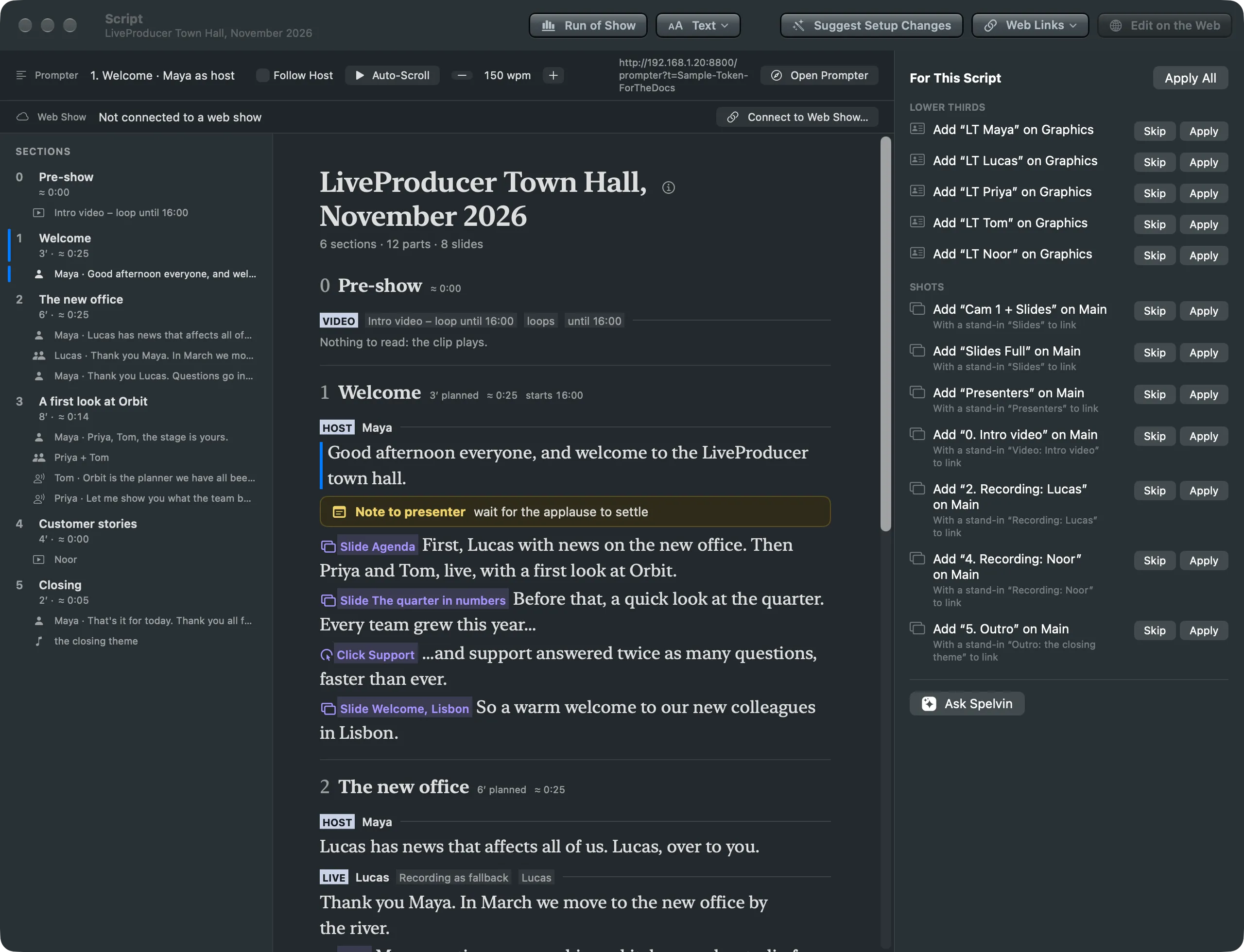
Suggest Setup Changes
Section titled “Suggest Setup Changes”A panel on the right lists what the script asks of the show that it does not have yet: a lower third for each presenter, the shots for the host, the slides and the clips, the stand-ins for what is not on this Mac. Each row is applied, skipped or undone; nothing changes until you apply it. Ask Spelvin adds Spelvin’s suggestions under them. See Setup from the script.
See also
Section titled “See also”Describes Live Producer 0.330 · 10 November 2026