
For a problem you hit or an idea you have, use Send Feedback first: choose Help › Send Feedback… in the Studio, or Feedback in the web’s rail. It takes your Mac’s details along, tells you at once when someone sent the same, and shows you what came of it. See Send feedback.
For anything personal, such as your account, your company or an invoice, write to support@liveproducer.ai; Help › Get Support in the Studio opens this page. A good question gets a quick answer, so send these with it.
What to send
Section titled “What to send”- The version. Choose Live Producer › About Live Producer, or look at the Version line in Settings › Account. Say whether the Studio and the platform differ; see Versions.
- Your Mac. Its chip and its macOS version.
- What you did and what happened. The steps, what you expected, and what you saw instead.
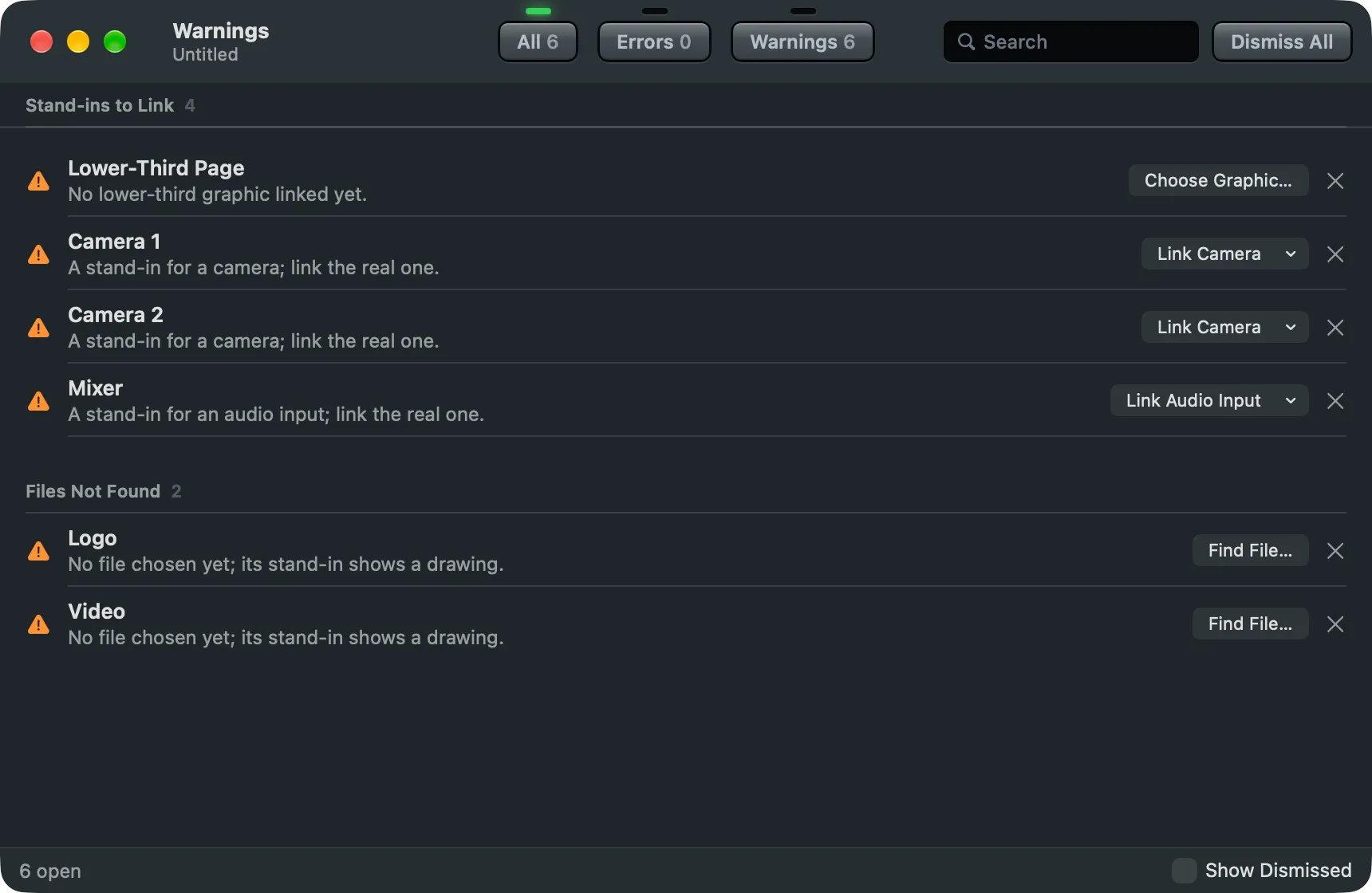
- The warnings and errors. Open Window › Warnings (⌥⌘’), right-click a row and choose Copy, then paste it into your mail. A screenshot of the window works too. See Warnings.
- How the Mac kept up, for a problem with stutter or dropped frames: View › Show Status Bar (⌘/) shows the frame rate, the load and the dropped frames; View › Performance Details says more.
- The show, if you can share it. A show in a show folder can be sent as the whole folder.
See also
Section titled “See also”Describes Live Producer 0.330 · 10 November 2026