
The keys above the bottom row follow the show's layers and are saved with the show; the bottom row is this Mac's.
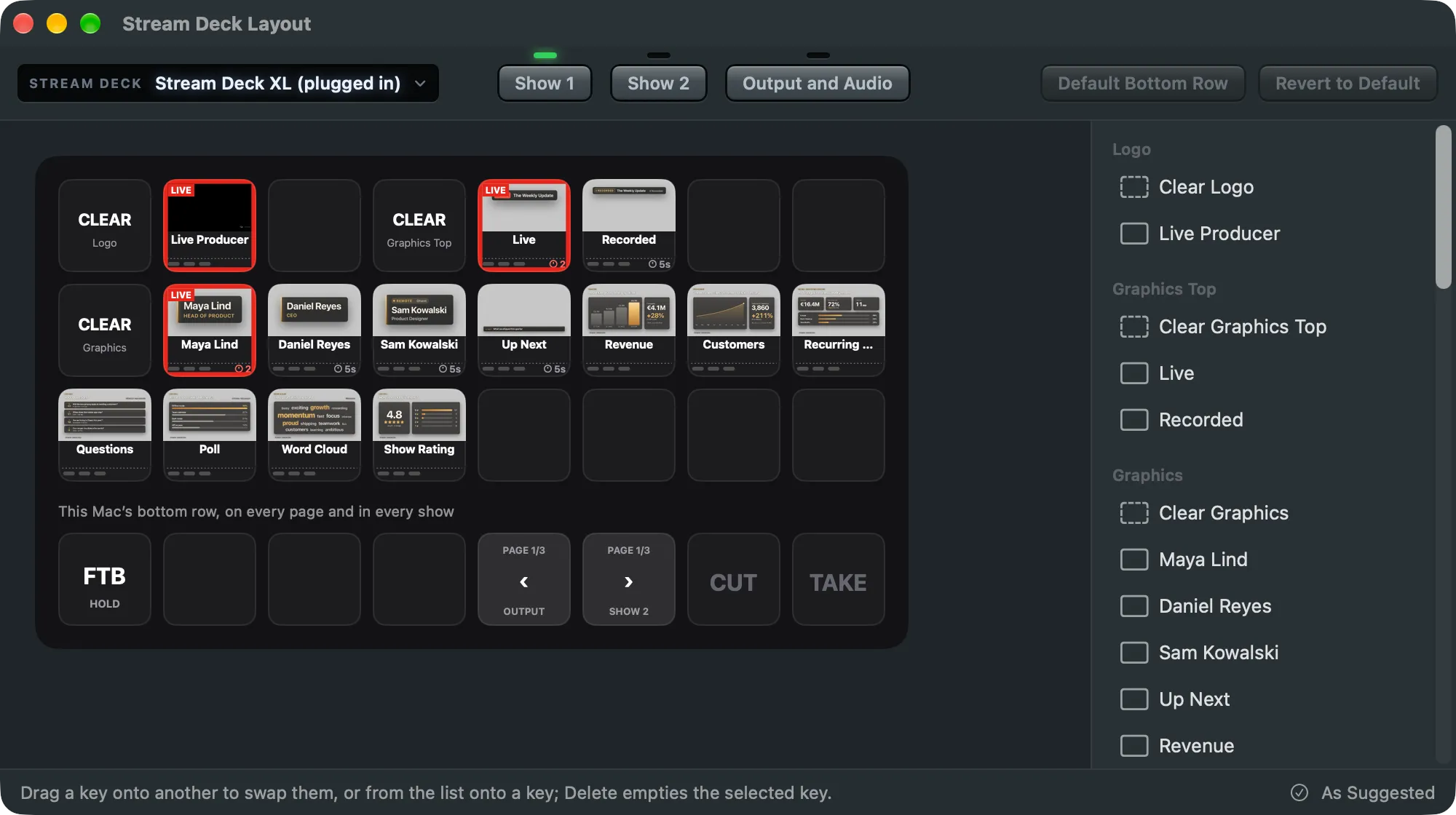
The layout is what each key of the Stream Deck does. The Studio suggests it from the show’s layer setup, so the show is on the keys as soon as you plug in. The keys above the bottom row are the show’s; the bottom row is this Mac’s.
The suggested layout
Section titled “The suggested layout”The keys mirror the layer strips. Each layer gets a row, first layer at the top: its Clear key on the left, then its shots in the order of the strip. A layer with more shots than fit runs on to the next row. When there are more layers than rows, two small layers share a row, then a further page follows. A shot you add to a layer gets a key on its row by itself. See Layers, shots and sources.
The suggestion has up to three pages:
| Page | Holds |
|---|---|
| Show | The layers and their shots. |
| Show | Start Show, the show clock, and the slides one click back and on. Only in a show with a script. |
| Output and Audio | Record, Stream, Captions on Program, Auto Live, and the mutes of the audio inputs and the Program bus; Talk to Guests in a show with guest slots. |
The page keys in the bottom row move between them. Each Stream Deck can start on its own page.
The bottom row
Section titled “The bottom row”The bottom row is the same on every page and in every show. By default it has Fade to Black at the left, the page keys, and Cut and Take at the right; a small Stream Deck has fewer of them. It belongs to this Mac, so you keep your habits from show to show. Shots, layers and mutes can’t go there; they are the show’s.
The keys show the state
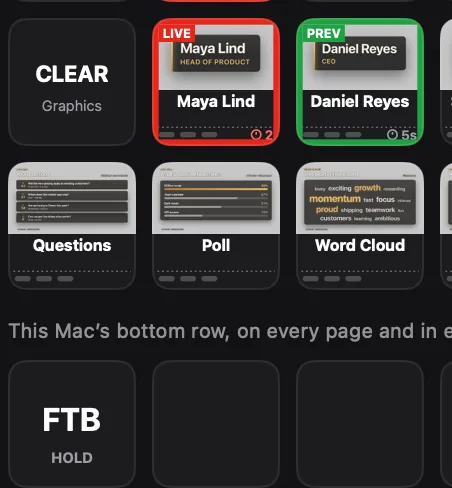
Section titled “The keys show the state”A shot’s key shows its picture and name. A shot on the program has a red frame and the word LIVE; one in the preview, PREV. A lower third or a logo is zoomed in on what it shows, on a dark or light grey it reads on, as its tile in the Studio is (see Graphics on their tiles).
Under the name, a strip on every shot key is the tile’s tab: a lamp for each shot it brings along (yellow when set, green in preview, red live) and its Auto Out, counting down while live. Hold the key to bring those shots along; see Held keys. TAKE and CUT dim when there is nothing to take. Fade to Black shows BLACK while the program is black. State is never colour alone.
Your changes
Section titled “Your changes”You can move keys in the layout editor. Your changes are saved with the show, so they go with the show file to another Mac. The suggestion never undoes a key you placed. A shot or layer the show no longer has leaves an empty key. Revert to Default removes your changes, and the keys follow the layer setup again.
Stream Decks of another size
Section titled “Stream Decks of another size”A layout is kept per size of Stream Deck. On a Stream Deck of another size, the show’s layout is wrapped to its grid: the same pages, the keys in the same order. That wrap is not saved until you change a key there.
Stream Deck +
Section titled “Stream Deck +”On a Stream Deck +, the dials and touch strip follow the show: a dial works as the T-bar, another sets the transition’s duration, others the bus and input levels. The touch strip shows what each dial does. The + has not been tried with Live Producer yet.
Read more
Section titled “Read more”Describes Live Producer 0.330 · 10 November 2026